Your movies don't play in 3D on Vision Pro. This fixes that.
Apple Vision Pro won't play a 3D movie in 3D. It shows you a flat, doubled image — two squashed
pictures, side by side. It won't open an MKV at all. And your VR180 and 360° footage sits there
unrecognised.
Version 1.1 · 69 MB · Apple silicon · macOS 15 or later · Notarized by Apple
Hosted on Patreon — signing up is free. No payment, no card, no tier.
Your 3D movie today. Two pictures, squashed side by side.
Why it happens
Nothing in the file tells Vision Pro it's looking at 3D.
A 3D movie is stored as two pictures squashed side by side inside one frame. Every 3D TV and
Blu-ray player knows to pull them apart. Vision Pro doesn't — not on its own, and
not through any media server. It plays the frame exactly as it finds it.
No setting fixes this. AirStream writes the missing signal in — without re-encoding a
single frame — and the same movie suddenly plays with real depth.
Do this once
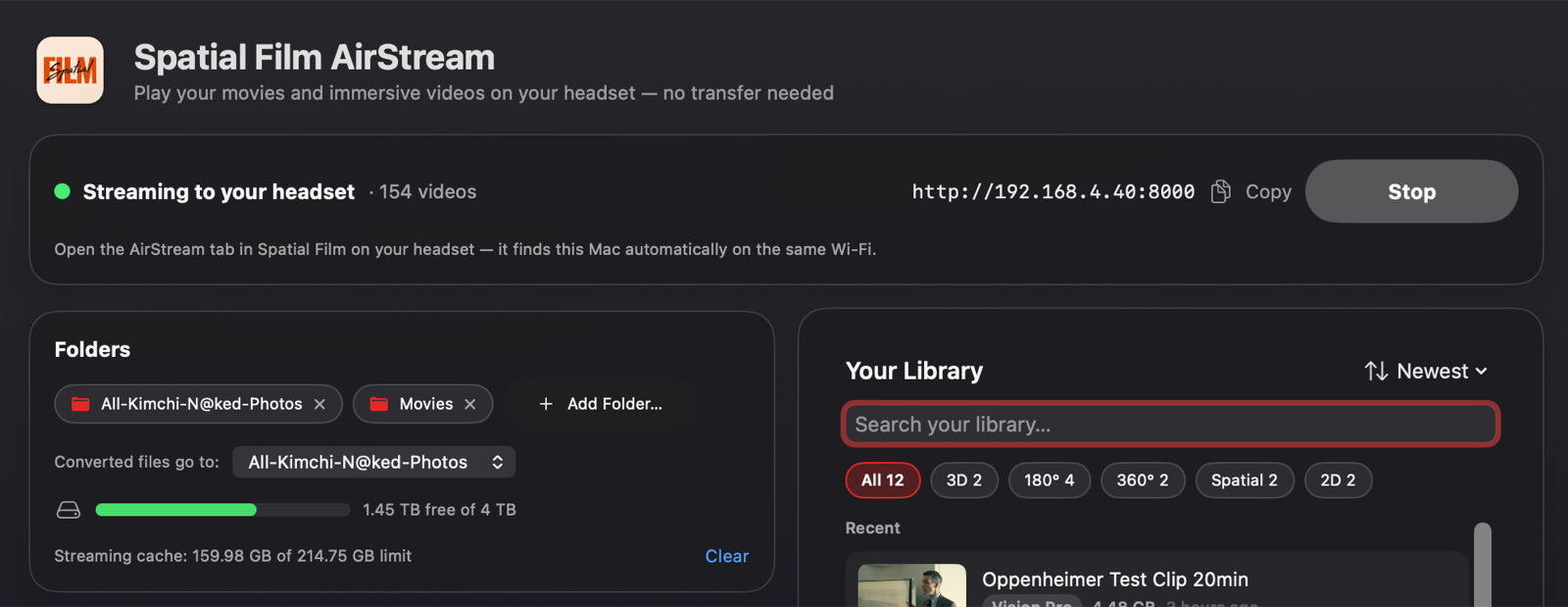
Set it up once. After that, it's drag and drop.
Version 1.1 rebuilt the whole app around one
idea: everything lives in one window. Your server, your folders, and a library of everything
you've converted — searchable, sorted, always up to date.
01
Point it at your movies
Open AirStream, click Add Folder, and choose wherever your films live. An external
drive, a NAS mount, your Movies folder — add as many as you like.
Spatial Film
Why it mattersYour films stay exactly where they are on your Mac — AirStream
reads them in place and never touches your originals.
02
Start streaming
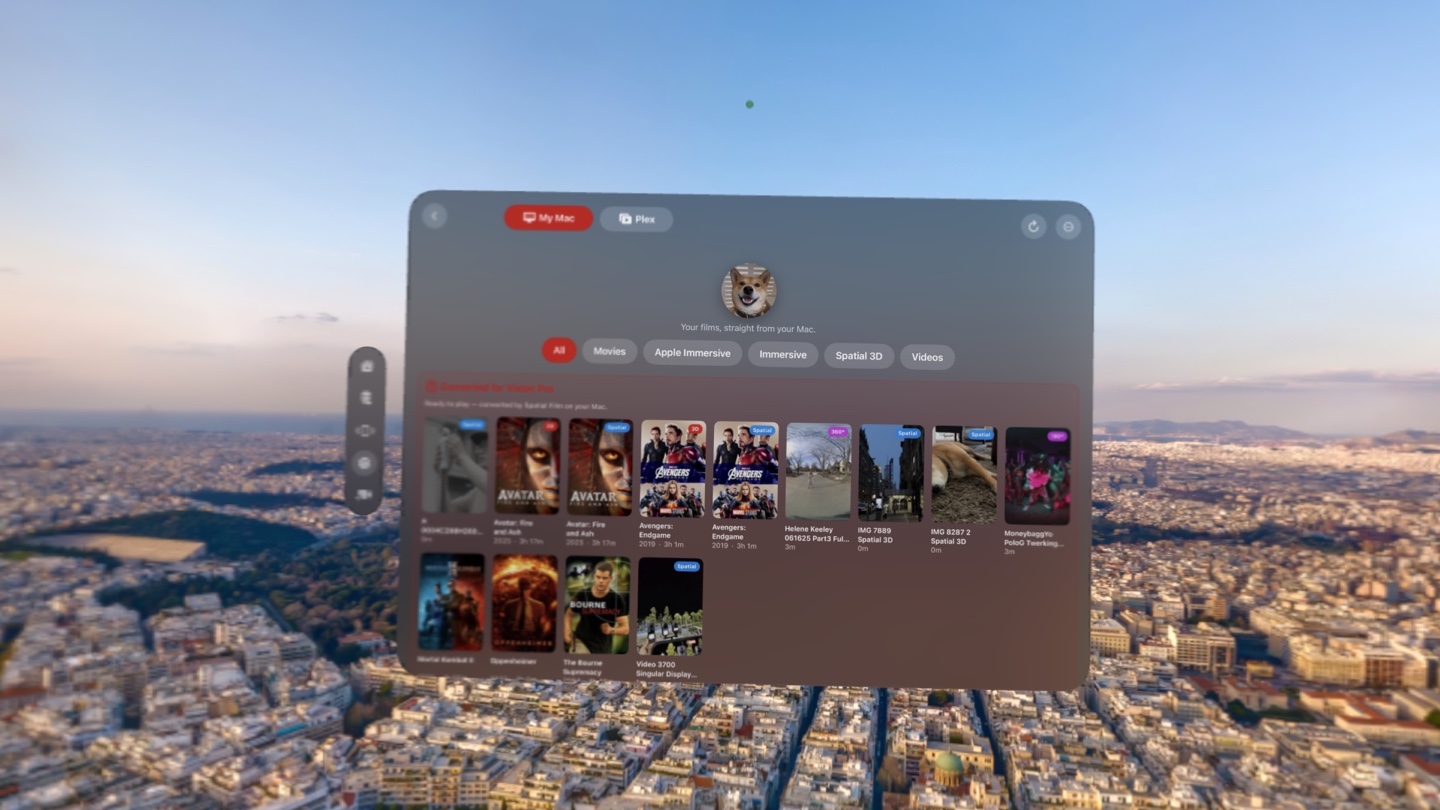
Click Start Streaming. Put the headset on, open Spatial Film, go to the
AirStream tab. Your Mac appears by itself — nothing to type, nothing to pair.
Why it mattersFor a lot of people this alone is the whole app: your entire
library on the headset, streamed straight from your Mac. Nothing is copied across and nothing is
re-encoded — so your films use none of the Vision Pro's storage. The kind you can't add later, and
paid Apple handsomely for.
03
The one that matters
Drop a 3D movie. Choose its destiny.
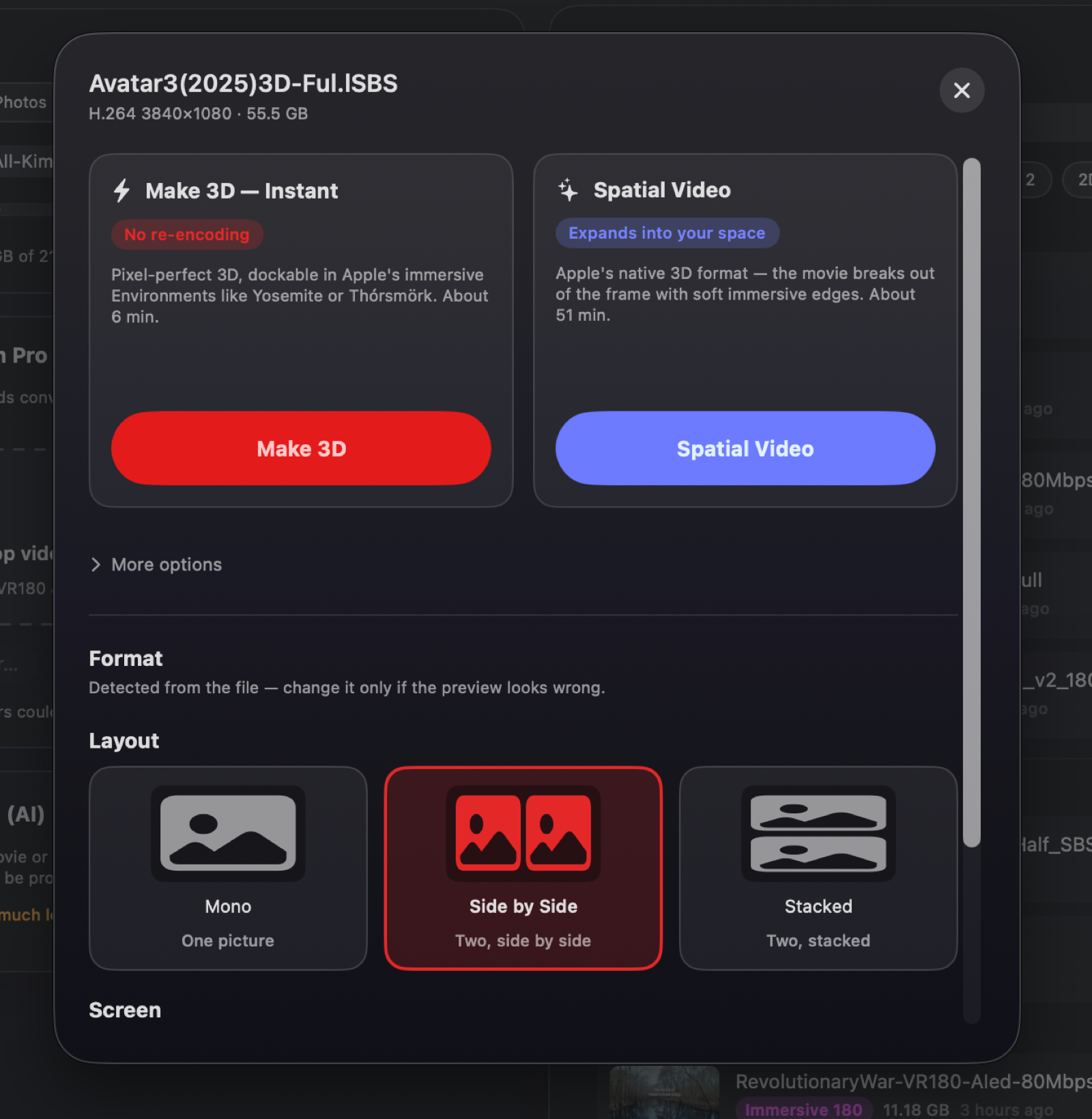
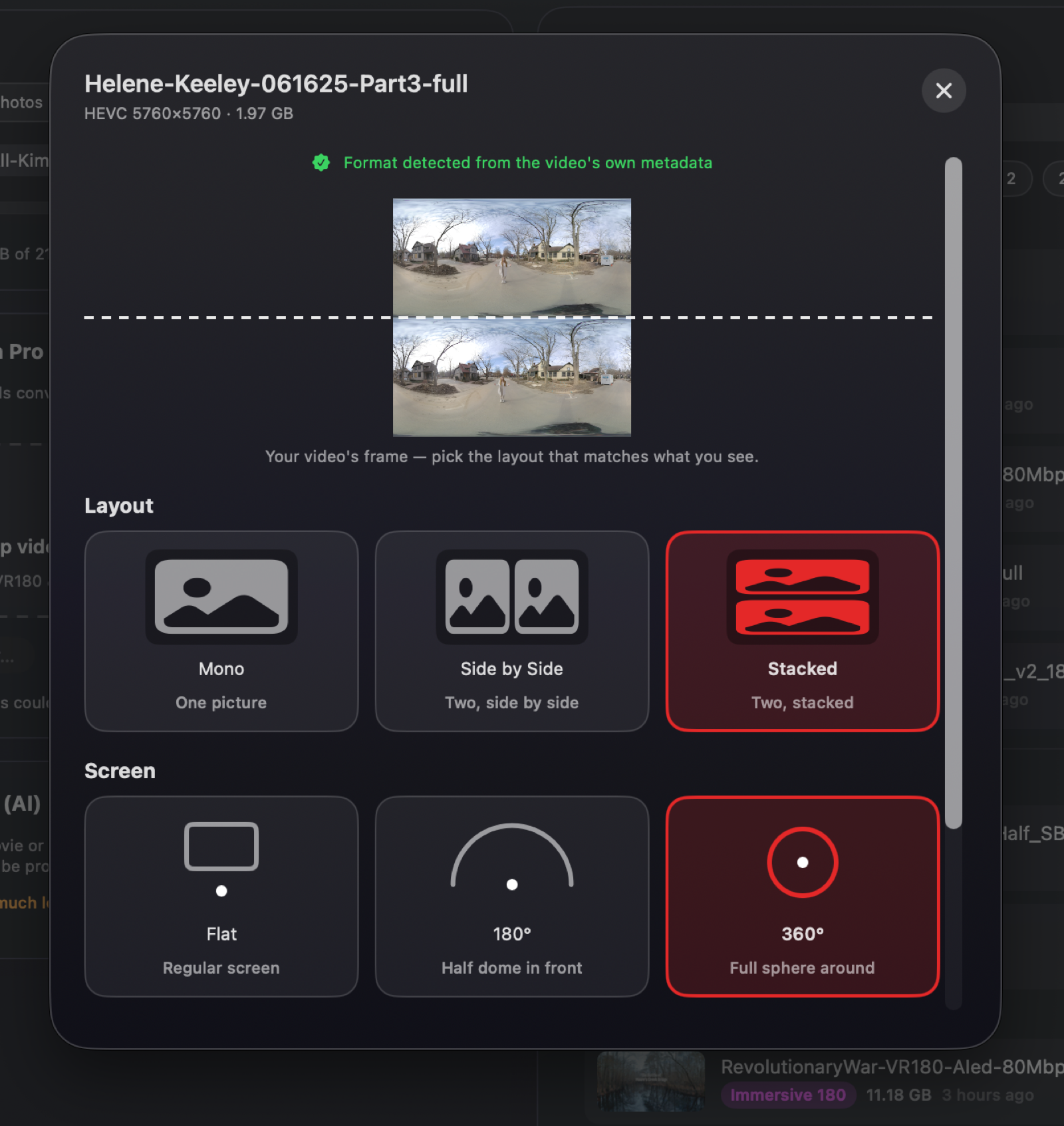
Drag any 3D movie anywhere onto the window. AirStream reads the file, shows you
a frame from your movie with the layout it detected — side by side, stacked, half or full,
it works this out for you — and offers the choice that actually matters:
Make 3D — Instant, pixel-perfect and done in minutes, dockable in Apple's
immersive Environments like Yosemite or Thórsmörk. Or Spatial Video — Apple's own
3D format, the movie breaking out of its frame with soft immersive edges.
Spatial Film
Why it's fast, and why it costs you nothingMake 3D — Instant doesn't re-encode
your film. It writes the missing 3D signal into the file and copies the video across untouched — not
one frame is recompressed. A three-hour movie finishes in minutes, not hours, and the picture is
identical to your original. New in 1.1: stacked (over-under) 3D gets the same instant treatment as
side-by-side. You are not trading quality for 3D. You're telling Vision Pro what it's looking at.
04
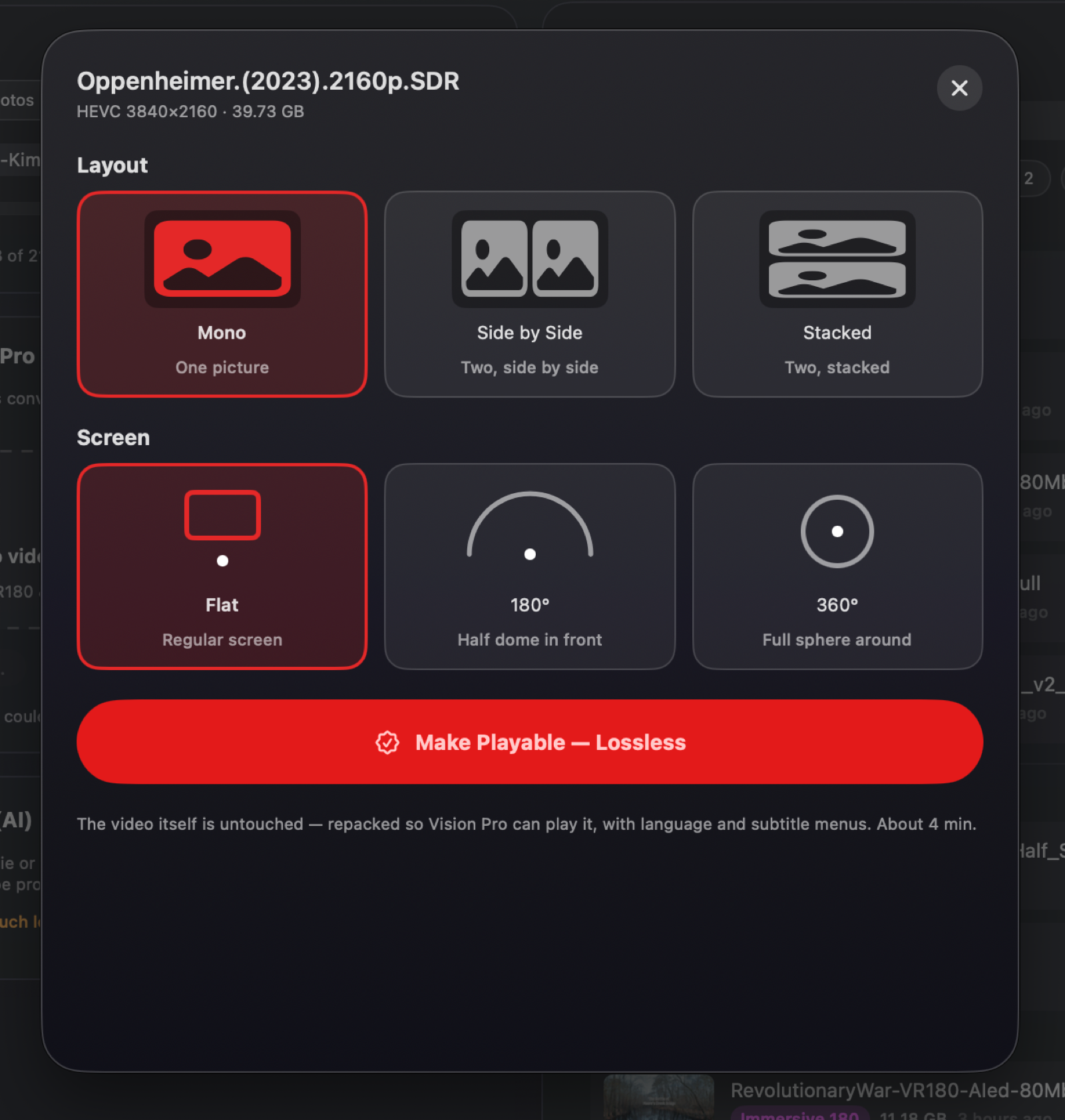
Make your MKV files openable at all
Vision Pro cannot open MKV files. Not "plays them poorly" — cannot open them. So
today, your MKV library is simply invisible on your headset. Drop one in and choose
Make Playable — Lossless, and they exist.
Spatial Film
Why it mattersAnother rewrap, not a re-encode. Same video, repackaged into a
container Vision Pro understands. Fast, lossless, and suddenly your MKVs are there.
05
Turn VR180 and 360° into Apple Immersive — instantly now
VR180 and 360° are not Apple formats. Vision Pro's native player can't decode them with hardware
acceleration — so your own immersive footage never plays the way Apple's immersive films do.
Drop one in, pick 180° or 360° on the sheet, and hit
Make Immersive — Instant. New in 1.1: this is the same zero-re-encode treatment
your 3D movies get — AirStream writes Apple's immersive signal into the file and copies the video
across untouched. What used to be an hours-long re-encode is now over before your coffee.
Spatial Film
Why it mattersYour footage now plays through Apple's native immersive
pipeline, hardware-decoded, at the full quality the headset can deliver. The same path Apple
Immersive Video itself takes. And because 1.1 does it without re-encoding, it works on any
Apple silicon Mac running macOS 15 — no longer just macOS 26.
06
Or hand it a whole folder
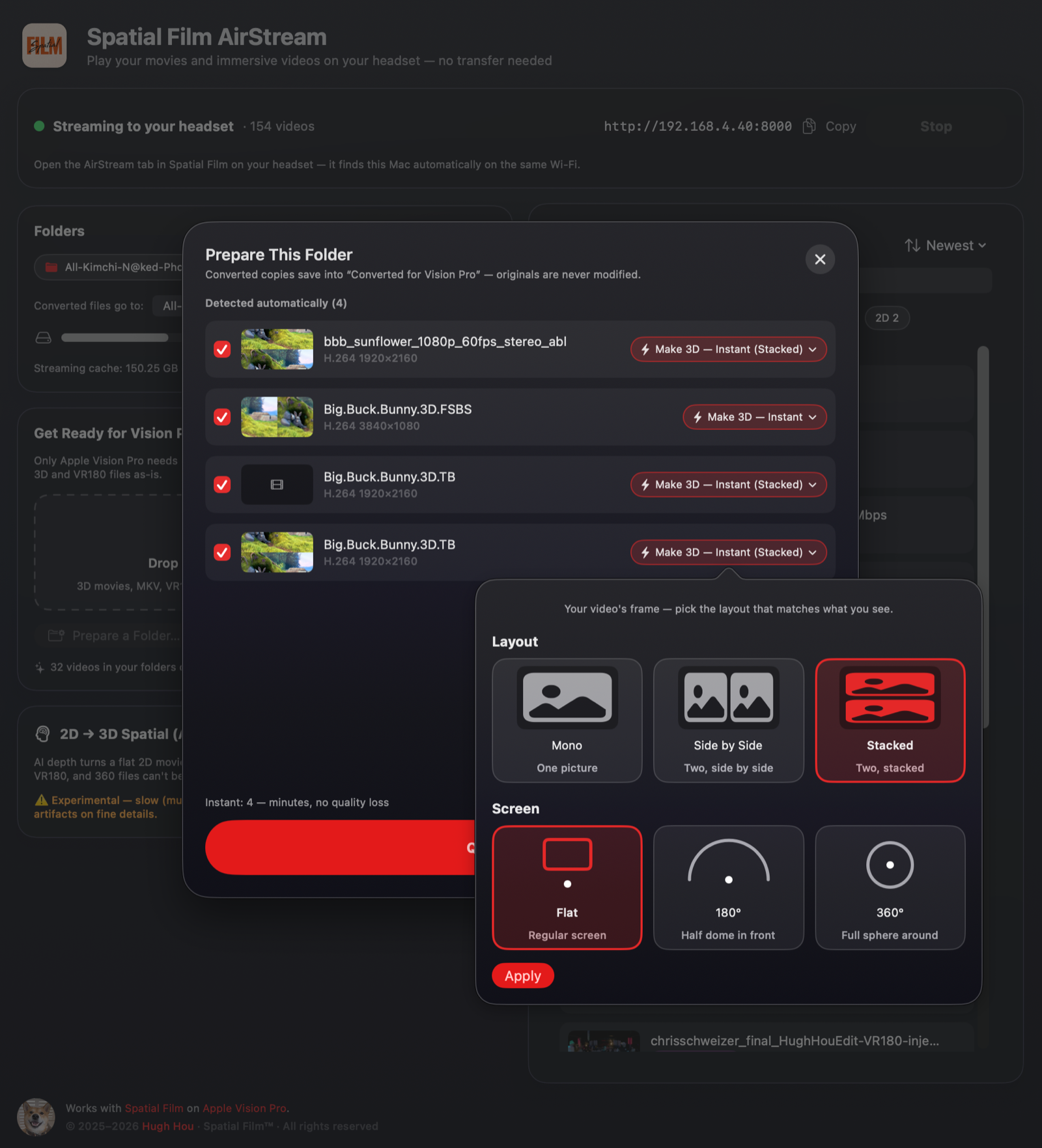
Click Prepare a Folder… and point it at your 3D rips. AirStream reads every
file, works out each one's format, and lines them up with its best guess — you glance down the
list, fix anything it wasn't sure about with two clicks, and hit Queue. Instant
conversions run first, so your library is playable in minutes while the long jobs take their
time.
Everything you've ever converted lives in Your Library, right in the main
window — searchable, sorted by newest, each film wearing the same format badge it wears in the
headset.
Spatial Film
Why it mattersA weekend's worth of collection, converted in one sitting —
and nothing converts without you seeing exactly what it's about to do.
07
The ambitious one
Turn a flat film into 3D
An on-device AI depth model looks at ordinary 2D video, works out the depth of
every shot, and rebuilds it as real stereo 3D. Your old home videos. The films that never got a 3D
release. Anything flat you wish you could step into.
Your VHS baby tapes are not training data.
The model runs on your Mac. The whole thing, start to finish. Nothing is uploaded. Nothing waits
in a queue behind ten thousand strangers. No terms of service quietly reserving the right to "use
your content to improve our services." There isn't even an account it could be uploaded
to.
Why it mattersThis is the most ambitious thing in the app, and it is
experimental — expect it to be slow, and to show artifacts on fine detail. But it is turning flat
footage into depth, on your own machine, for free.
Two ways to watch a 3D movie. Both are yours.
Those two buttons on the sheet aren't better and worse — they're different, and they're both free.
Make 3D — Instant 3D
Lossless and fast. Your film exactly as it left the disc, now in 3D.
Spatial Video Spatial
Apple's immersive presentation, with soft, feathered edges. Most 3D movies have
a moment where something crosses the frame edge and the 3D fights itself — Spatial Video dissolves
that boundary away. And because Vision Pro tracks your eyes and aligns each view to your own
pupils, the depth lands where your eyes expect it — so it stays easy to watch, even through
a long film.
Best of all on films photographed with real 3D cameras
rather than converted afterwards — Avatar: Fire and Ash and its kind. That's when it stops
feeling like a screen.
Can't decide? Convert a film both ways. Spatial Film shows you both versions side by
side and lets you pick which one to watch tonight.
See it on a real film
Look closely. The two halves aren't the same.
This is an actual 3D movie frame — a left eye and a right eye, packed into one picture.
Study the edges and you'll catch it: everything sits a few pixels apart between the two.
That shift is the depth. It's the whole trick, and it is already sitting in
your file.
Vision Pro puts both halves on screen, squeezed, and the depth never arrives.
Make 3D — Instant tells it which half is which.
A real 3D film frame. Two eyes, each squeezed to half width.
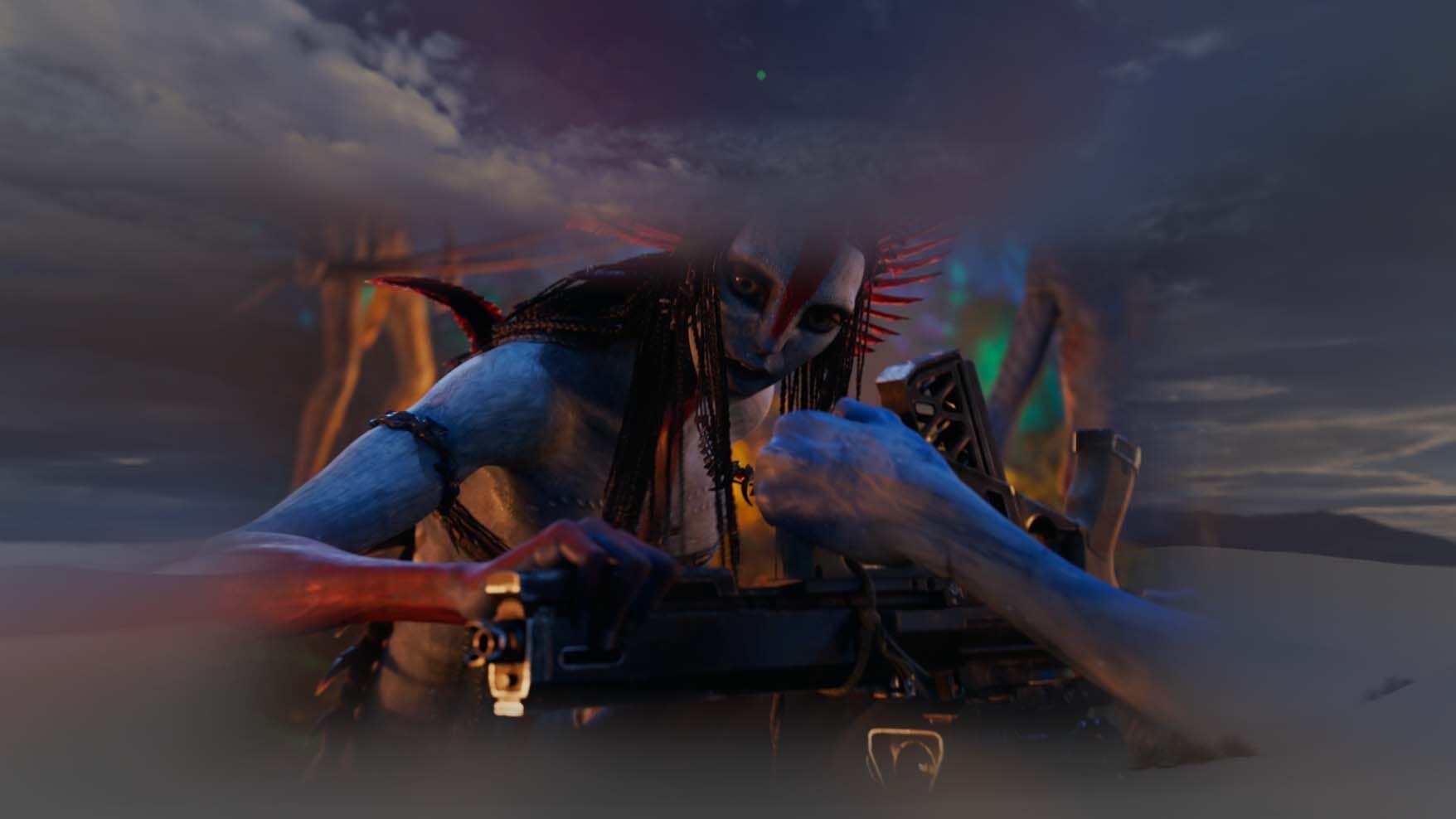
Or convert it to Spatial
The edges go soft, and your eyes stop fighting.
A 3D film ends at a hard rectangular edge. Anything reaching toward you gets sliced off by that
edge, and your eyes are handed two answers about where it actually is. That quiet argument is
what most people are feeling when they say 3D tires them out.
Convert the same film to Spatial and the border feathers away instead of cutting.
The window dissolves, the argument stops, and the picture just sits in the room with you. It's the
format to reach for on a long night.
It has the most to work with when the film was actually shot on two cameras rather
than converted after the fact — real parallax in every frame, and Spatial puts all of it in the room.
The same frame, in Spatial. The picture doesn't stop — it dissolves. Nothing reaching toward
you gets clipped, because there's no hard edge left to clip against.
If you use Plex
Plex has no idea 3D exists.
There is no concept of stereo anywhere in it — a 3D movie is just a video file as far as Plex is
concerned. So on Vision Pro, your 3D collection plays flat and doubled, and no Plex setting will ever
change that.
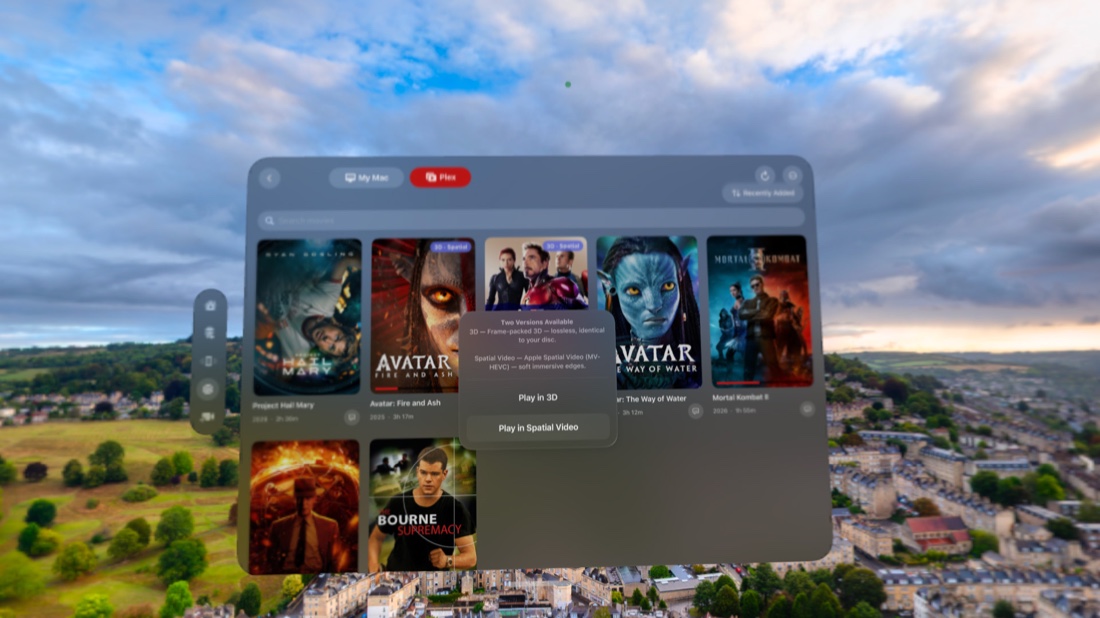
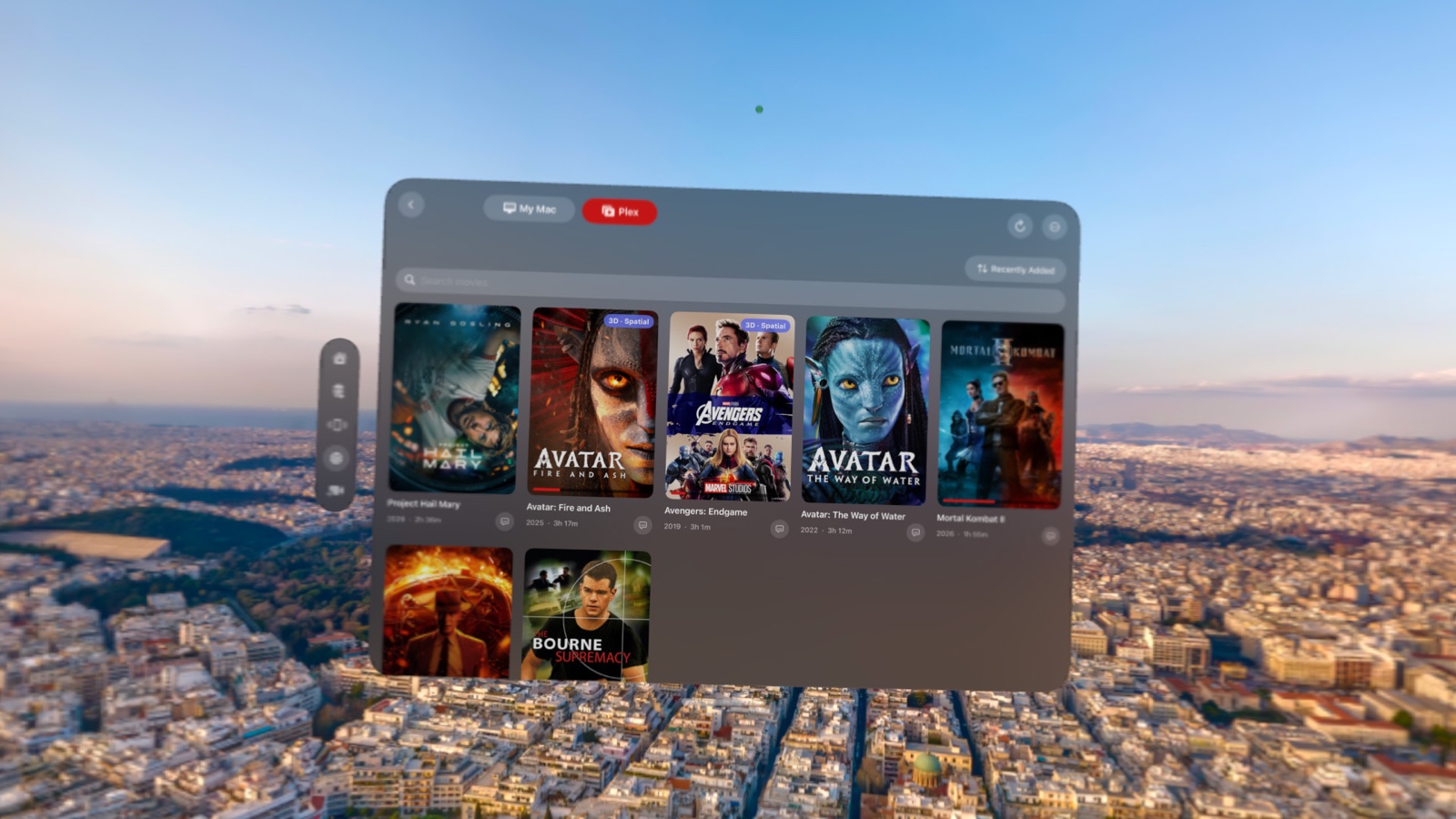
Spatial Film signs in to your own Plex server and browses your own library —
posters, titles, summaries, watch state, Continue Watching. Tap a 3D movie that hasn't been converted and
it tells you exactly why it can't play in 3D, and what to do about it.
Convert it once with Make 3D — Instant and the film stays right where it was — same
poster, same information — now playing in real stereo 3D. The broken double-image copy is hidden, so you
can't tap it by mistake.
New in Spatial Film 8.6: MP4 and MOV movies skip the Mac entirely — tap the film,
pick its 3D layout, and Vision Pro converts it right on the headset: no re-encode, no
quality loss, your original untouched on the server. MKV is the one format that still wants AirStream
on your Mac — Plex can't hand a headset a convertible file.
Your Plex library. In real 3D. Nothing else does this.
Don't want to pay for Plex?
We support Jellyfin too.
Jellyfin is the free, open-source media server — no Plex Pass, no remote-watch fees, nothing
paywalled, ever. If Plex's pricing sent you looking for a new home for your collection, Spatial Film
treats that home exactly the same.
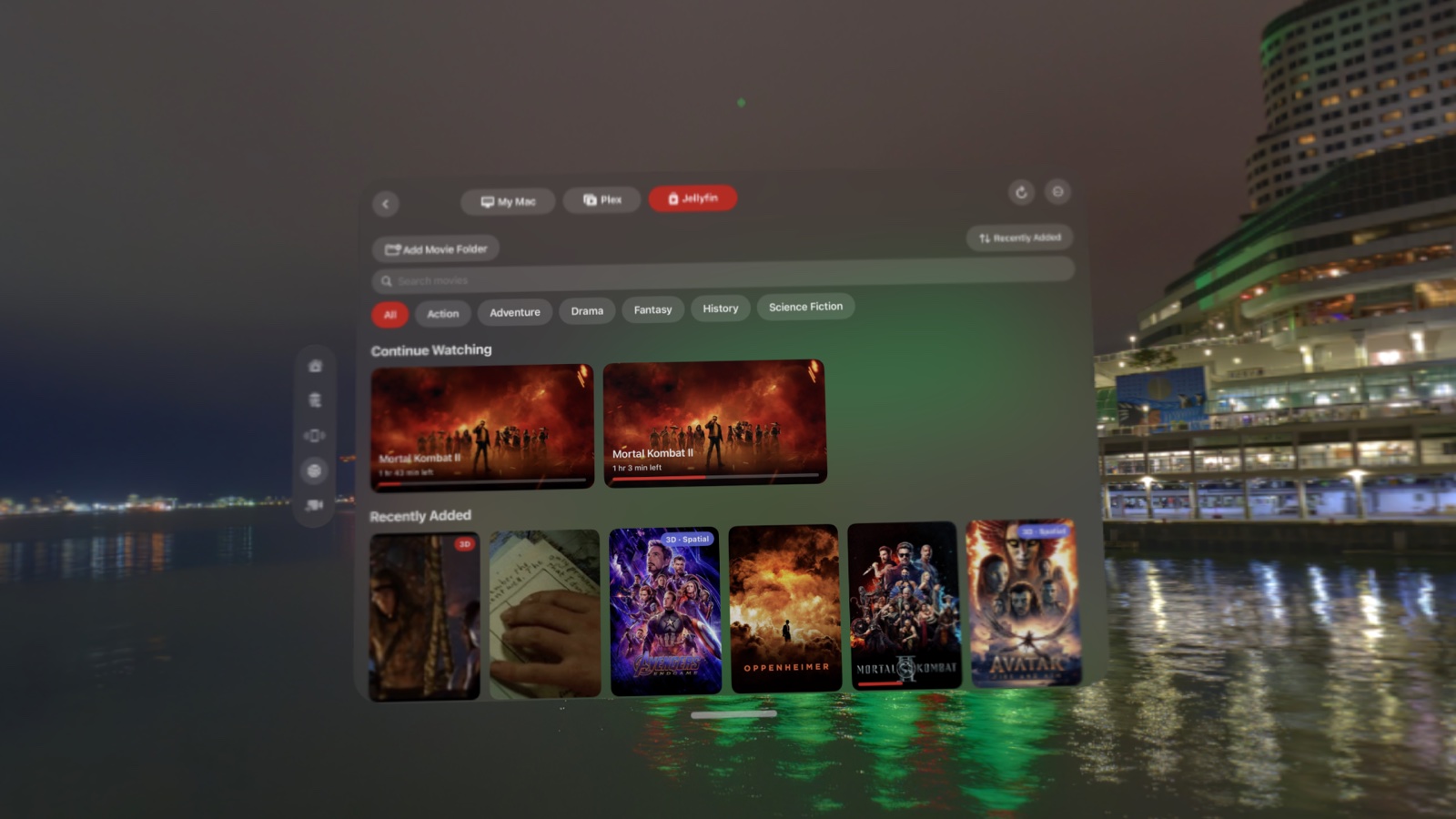
Sign in once and Spatial Film finds the Jellyfin server on your Mac by itself — no IP
addresses, no dashboard. Your library arrives with posters, summaries, Continue Watching and watch
state.
New in Spatial Film 8.6: your 3D MKVs now convert on the Vision Pro
itself — no Mac anywhere in the loop. Jellyfin hands the movie over, the headset repackages it
with zero re-encode, and it even bakes in the right audio: English picked automatically from a
multi-language rip, or whichever track you choose. The converted copy lands in your library and plays
instantly from then on — server awake or not. VR180 and 360 videos get the same one-time convert into
Apple's native immersive format.
You can even set the library up from the headset: pick the movie folder on your Mac
from inside Vision Pro, and Jellyfin scans it on the spot. No config files, no typing paths — the
part of Jellyfin everyone dreads, gone. The whole setup takes about ten minutes.
Your Jellyfin library. In real 3D — converted on the headset. Zero subscription, zero Mac.
Always-on library
Your movies live on a NAS? Even better.
A Synology in the closet, a QNAP under the desk, a new UGREEN NASync on the shelf, an
Unraid box humming along in the basement — if it can run Plex or Jellyfin, Spatial Film
treats it exactly like a Mac:
your collection with posters and watch state, movies in the right language, and resume
that lands on the second you left. The Mac can sleep. The movies can't.
Here's the part NAS owners will appreciate: Spatial Film never asks your server
to transcode. It direct-plays your files, or losslessly repackages them on the
fly — so even a small, fanless NAS serves 4K HEVC without breaking a sweat. Most apps'
NAS story dies at the transcoder. Ours doesn't have one to die at.
The free way · Jellyfin
Five minutes. Zero subscriptions.
On your NAS, install Jellyfin from the app center (Synology:
Container Manager · QNAP: App Center · UGREEN: Docker in UGOS) and point it at
your movies folder.
On Vision Pro: Spatial Film → AirStream → Jellyfin → tap
Search My Network — your NAS appears by name. Tap it and
sign in once. (Custom port? You can still type the address, like
192.168.1.20:8096.)
That's it. Your movies arrive with posters. Tap one.
The Plex way
Already running Plex? You're nearly done.
Install Plex Media Server from your NAS's app center and claim
it with your Plex account.
In Spatial Film, sign in to Plex with the same account — your NAS appears by
itself. No addresses to type.
Run more than one server? Switch between them any time in the
⋯ menu.
Real 3D from your NAS works like everywhere else: convert a film once
with Make 3D — Instant in Spatial Film AirStream on your Mac, save the
result into the NAS movie folder, and hit Refresh in the headset. Keep “3D” or “HSBS”
in the filename so the app knows what it's looking at. And that's the whole setup —
Vision Pro and the NAS just need to be on the same home network.
Your NAS. Your movies. Real 3D in the headset — and the server never breaks a sweat.
The honest version
What you need — and what it costs you.
Mac
Apple siliconM1 or later. Intel Macs are not supported.
macOS
15 (Sequoia) or laterEverything — including instant VR180 and 360° conversion — works on 15 and up. Only the optional re-encode fallback for immersive video needs macOS 26.
Headset
Apple Vision ProWith Spatial Film installed, on the same Wi-Fi as your Mac. Spatial Film also runs on Samsung Galaxy XR.
Price
FreeNo account. No sign-in. No trial. No watermark.
Get AirStream
Free, forever. It makes your library great on your own headset — and that part should
simply be free.
One window — server, folders, and a searchable library of everything you've converted
Drop any video anywhere; a visual sheet shows your movie's own frame and detects its layout
Stacked (over-under) 3D movies now convert instantly, same as side-by-side
VR180 and 360° conversion is now instant — no re-encode, and no longer needs macOS 26
Prepare a Folder: batch-convert a whole collection with per-file progress
Cancel any conversion mid-run; clearer status for everything
Free sign-up on Patreon · Version 1.1 · 69 MB · Apple silicon · macOS 15+ ·
Release notes
The app is free. The download lives on my Patreon, and signing up is free too.
That's the only thing I ask for it — a way to reach you.
When there's a new version of AirStream, you'll hear about it. When I post a new
3D or Apple Vision Pro tutorial on my channels, you'll hear about that too. And when I
finish a new immersive film, you'll be among the first to see it.
No payment, no card, no tier. Just the download, the occasional note from the filmmaker who made you a
free app — and, unavoidably, photographs of Kimchi, the Shiba Inu who runs the loading
screens and believes he built this.
Notarized by Apple. Every build is sent to Apple, scanned and approved before it ships —
the same process behind every Mac app you install from outside the App Store.
And there's a whole cinema waiting
Spatial Film on Apple Vision Pro
Immersive films shot in 180° and 360°, Apple Immersive Video, and a growing catalogue you can watch
tonight.
No Mac at hand? The headset app also plays and converts your own 3D, VR180 and 360° files
on-device — free. See the free player →
Not on Vision Pro? Spatial Film also runs on Samsung Galaxy XR — with Plex,
Jellyfin and NAS support built in. See the Galaxy XR version →
Publishing to YouTube or prepping files for Vision Pro? Our other free Mac app writes the
spatial metadata — with head-tracked ambisonic audio. Get the free Spatial Injector →
Questions
The things people ask.
Is it really free?
Yes. No account, no sign-in, no trial, no watermark. It makes your own library work on your own headset, and that should be free.
Why won't my 3D movies play in 3D on Apple Vision Pro?
A 3D movie is stored as two pictures squashed side by side inside one frame. Nothing in the file tells Apple Vision Pro that it's 3D, so it plays the frame exactly as it finds it — a flat, doubled image. AirStream writes the missing signal into the file, without re-encoding, and the same movie then plays with real depth.
Can Apple Vision Pro play MKV files?
No — Apple Vision Pro cannot open MKV files at all. AirStream's MKV → Vision Pro (2D) conversion repackages the same video losslessly into a container the headset can play.
Does my video get uploaded anywhere?
No. AirStream streams from your Mac to your headset over your own Wi-Fi. Nothing is uploaded, and there's no account it could be uploaded to.
Why does macOS ask for Local Network permission?
So your headset can find your Mac. That's the whole feature. Without it you'd be typing in an IP address by hand.
Will converting damage my original files?
No. A conversion always writes a new file and never modifies the original. If a lossless conversion succeeds, AirStream will offer to move the original to the Trash — recoverable, and only if you say yes.
What can Vision Pro play once I've converted?
Apple Immersive Video (AIVU), Apple Projected Media Profile (APMP), VR180 in 3D and 2D, 360° video, Spatial Video, frame-packed 3D movies, and regular flat video.
Do I need Plex?
No. AirStream works entirely on its own — your Mac, your folder, your headset. Plex simply gives you a nicer front door if you already use it: posters, titles, and where you left off.
Does it work with Jellyfin?
Yes, fully. Jellyfin is the free, open-source media server — no subscription, nothing paywalled — and it gets the same treatment as Plex: posters, Continue Watching, real 3D after a one-time convert. You can even add your movie folder to Jellyfin from inside the headset.
Does it work with a NAS, like Synology, QNAP, or UGREEN?
Yes. Run Plex or Jellyfin on the NAS — a Synology, QNAP, UGREEN NASync, TerraMaster, Unraid or TrueNAS box, or any mini PC — and Spatial Film treats it exactly like a Mac: posters, watch state, the right audio language, resume that lands where you left off. You never hunt for an IP address either: tap Search My Network and your NAS appears by name — tap it and sign in. And because Spatial Film never asks the server to transcode, even small NAS boxes serve 4K HEVC easily. For real 3D, convert a film once with Make 3D — Instant in Spatial Film AirStream and save it into the NAS movie folder.
Which 3D movies work with Make 3D — Instant?
Side-by-side 3D — the common kind.
How much disk space does a converted film use?
A converted film is a new file alongside your original, and AirStream keeps a streaming cache so it starts instantly — so allow roughly twice the film's size. The app shows you exactly how much cache it's using and clears it in one click, and it offers to move the original to the Trash once a lossless conversion succeeds.