Spatial Film · Android XR · Samsung Galaxy XR

Your Plex and Jellyfin library,
in real 3D. On Galaxy XR.

Spatial Film, built natively for Android XR on Samsung Galaxy XR, connects straight to your movie server — Plex, Jellyfin, a NAS in the closet, or a Mac on the same Wi-Fi. Your 3D movies play in real 3D as they are. Your MKVs just open. Your DTS audio just plays. Nothing is converted, and nothing leaves your network.

Version 1.30 · Free on Google Play · Samsung Galaxy XR

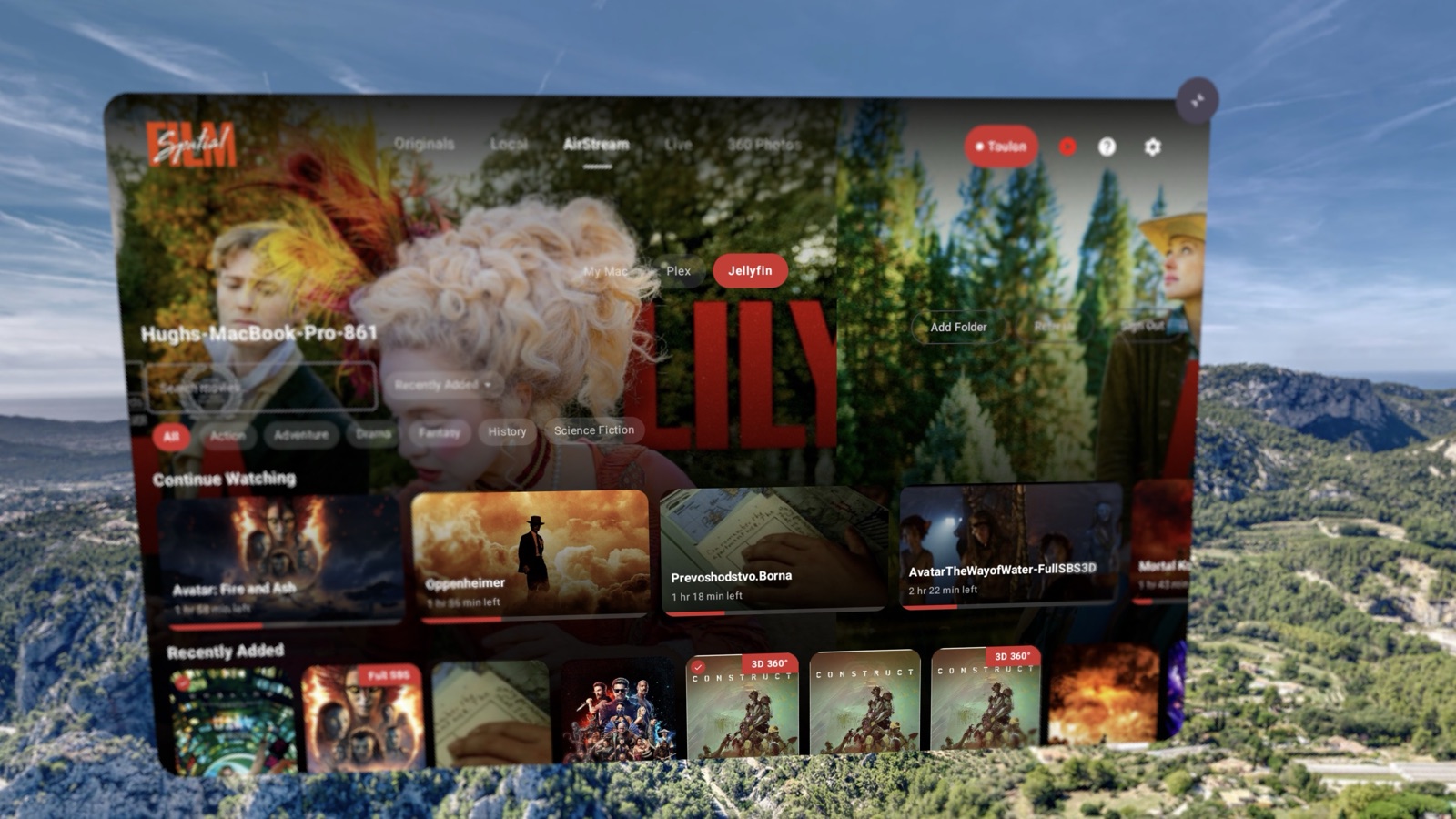
Spatial Film on Samsung Galaxy XR — a Jellyfin movie library floating over a Provence valley, with My Mac, Plex and Jellyfin source chips, Continue Watching and Recently Added shelves, genre filters, and resume bars on Avatar: Fire and Ash and Oppenheimer.
The AirStream tab on Galaxy XR: a Jellyfin library with Continue Watching, Recently Added, genre filters — floating inside one of your own 360° photos.

The short version

No Apple bells and whistles. You won't miss them.

On Apple Vision Pro, playing your own 3D movies takes a conversion step, because Apple's player only speaks Apple formats. On Galaxy XR, that step doesn't exist. Spatial Film reads a side-by-side or top-bottom 3D file and splits the two eyes itself — so the 3D movie you already own plays with real depth, untouched.

The same goes for the rest of the usual headaches. MKV files direct-play. And the app ships its own audio decoders — DTS, DTS-HD, TrueHD, AC-3 — so the films other headset apps play silently, or refuse outright, just work. Your server is never asked to transcode a thing.

Press play on the file you already have. That's the whole feature.

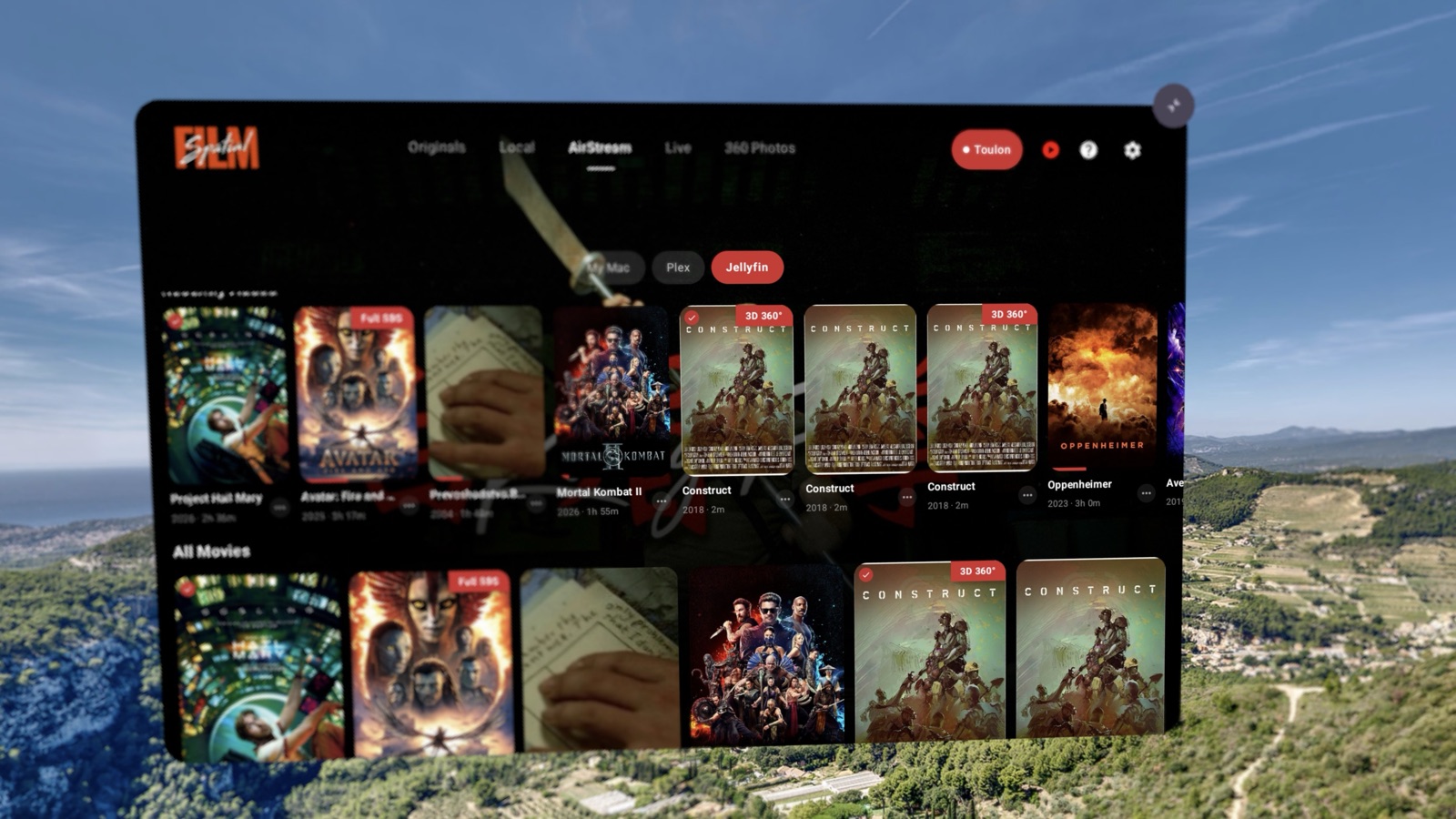
Spatial Film on Samsung Galaxy XR — a Jellyfin poster wall with Full SBS and 3D 360° badges on the cards, watched checkmarks, and runtimes, floating over a coastal hillside.
The poster wall reads your files before you do: Full SBS and 3D 360° badges mark what plays with depth, checkmarks mark what you've finished.

Setup

Three ways in. Pick yours.

In the app, the AirStream tab has three chips: My Mac, Plex, Jellyfin. They work here too — pick the one that matches where your movies live. Each takes a few minutes, once.

Same chips as the app. Try all three — signing in to one doesn't sign you out of another.

01

Put the free AirStream app on your Mac

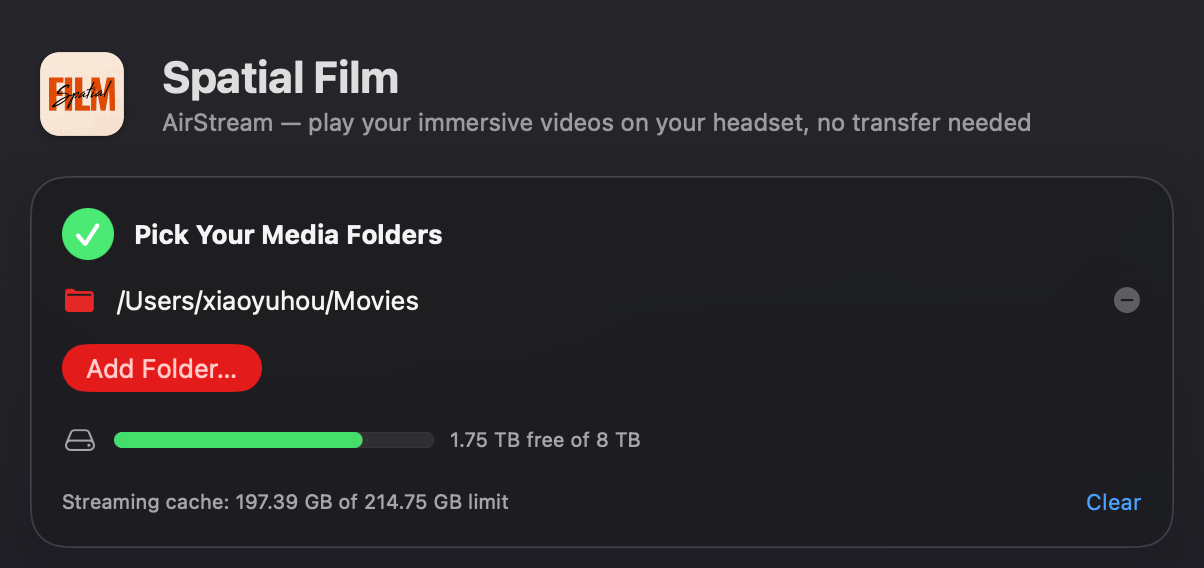
Download Spatial Film AirStream — the same free Mac app Vision Pro owners use. Click Add Folder and choose wherever your films live: your Movies folder, an external drive, as many folders as you like.
Spatial Film
Spatial Film AirStream Mac app — the Pick Your Media Folders screen, adding a folder of movies to stream to a Samsung Galaxy XR headset over Wi-Fi.

Why it mattersYour films stay exactly where they are — AirStream reads them in place and never touches your originals.
02

Start streaming, put the headset on

Click Start Streaming. In the headset, open Spatial Film → the AirStream tab → the My Mac chip. Your Mac appears by itself — nothing to type, nothing to pair. Tap a film.

Why it mattersYour whole library streams over your own Wi-Fi. Nothing is copied to the headset, nothing goes near the cloud, and your films use none of the headset's storage.

Always-on library

The best server for this app is the NAS you already own.

A Synology in the closet, a QNAP under the desk, a UGREEN NASync on the shelf, an Unraid box in the basement — put Jellyfin or Plex on it and the headset streams straight from the NAS. No computer running. No cloud account. Nothing ever leaves your network.

And here's the part NAS owners will appreciate: Spatial Film never asks your server to transcode. It direct-plays your files — video, MKV container, DTS audio and all — so even a small, fanless NAS serves 4K HEVC without breaking a sweat. Most headset apps' NAS story dies at the transcoder. Ours doesn't have one to die at.

Your NAS. Your movies. Real 3D in the headset — and the server never breaks a sweat.

More than a library

Watch from inside your own 360° photos.

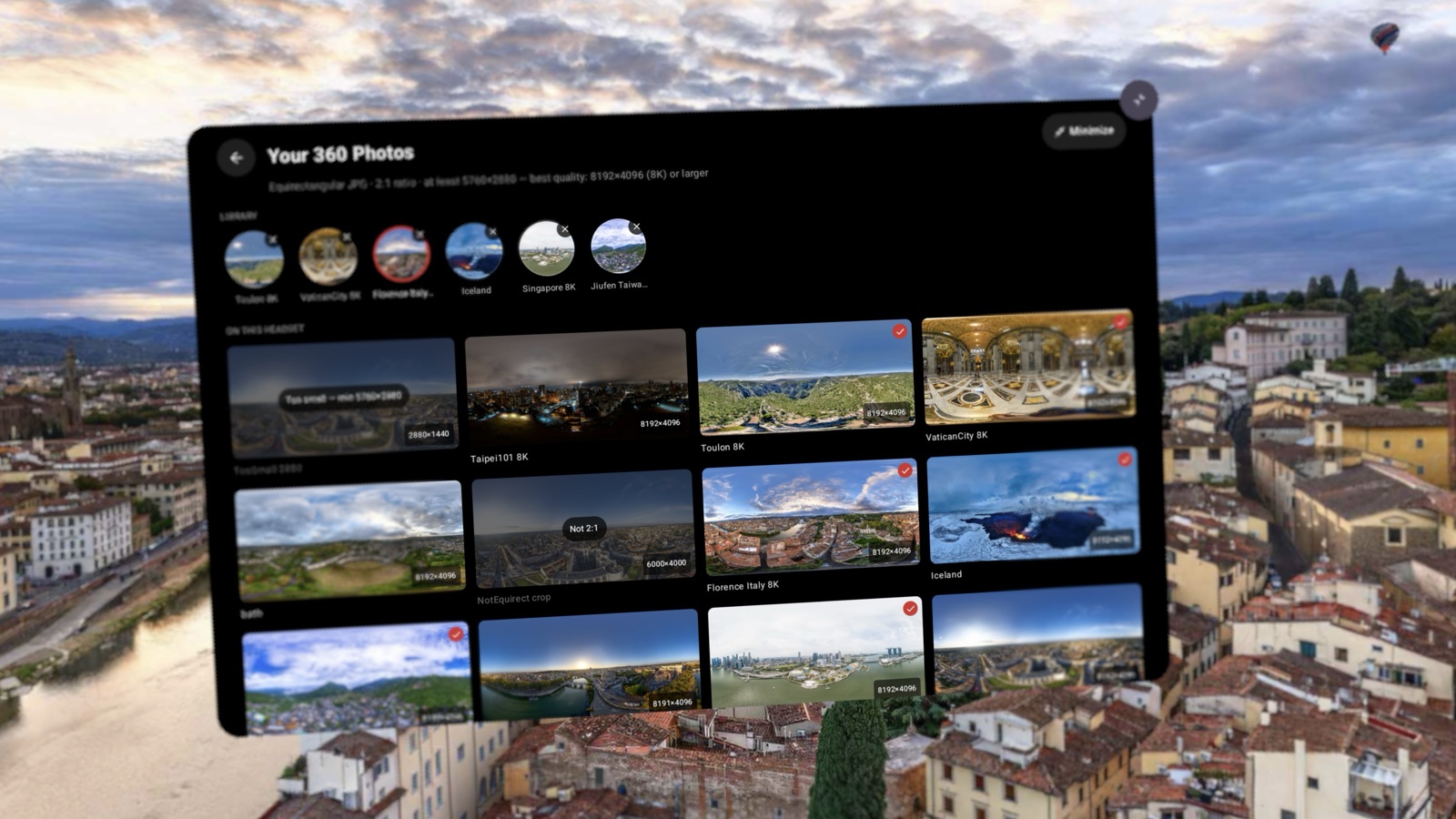
Any 360° photo you've shot — a drone panorama, a moment from a trip — becomes the room you watch in. Browse your library from a hillside in Provence, or over the rooftops of Florence. And when you're not watching your own films, the Originals tab carries a growing catalog of immersive films shot in 8K VR180 — some free, right now.

Spatial Film on Samsung Galaxy XR — the Your 360 Photos library floating over Florence at dusk, with a grid of the user's own 8K equirectangular panoramas from Toulon, Vatican City, Taipei and Iceland ready to use as viewing environments.
Your 360 Photos. Drop 8K panoramas onto the headset and every one becomes a place to watch from — this library is floating over Florence.

The honest version

What you need — and what plays.

Headset
Samsung Galaxy XRWith Spatial Film installed, on the same Wi-Fi as your server or Mac.
Formats
Real 3D & immersiveSide-by-side and top-bottom 3D, VR180, 3D 360°, flat 2D — up to 8K. MKV and MP4 direct-play.
Audio
Decoded in-appDTS, DTS-HD, TrueHD, AC-3, AAC — the app brings its own decoders, so the server never transcodes.
Price
FreeThe player and everything on this page. Originals include free films; the rest unlock by supporting the filmmaker.

Get Spatial Film

Free on Google Play. It makes your library great on your own headset — and that part should simply be free.

Get it on Galaxy XR — Free

Version 1.30 · Samsung Galaxy XR · Free on Google Play

Streaming from a Mac needs the free Spatial Film AirStream app — everything about it lives on its own page. Plex, Jellyfin and NAS need nothing on any computer at all.

Questions

The things people ask.

Is it really free?

Yes. The app is a free download, and everything on this page — Plex, Jellyfin, NAS streaming, real 3D, VR180 and 360° playback, 360° photo environments — is free. The Originals catalog of immersive films includes free titles, with the rest unlocked by supporting the filmmaker.

Do I need a Mac or any computer app?

Only for the My Mac source, which streams a folder of films straight from a Mac. Plex, Jellyfin and NAS need nothing installed on any computer — the headset talks to the server directly.

Will my 3D movies really play in 3D?

Yes — and without any conversion. Side-by-side and top-bottom 3D files play in real stereo exactly as they are. Spatial Film reads the frame geometry and the filename, splits the two eyes itself, and shows each eye its own picture. Keeping "3D", "SBS" or "HSBS" in the filename helps it be sure.

Can it play MKV files and DTS audio?

Yes to both. MKV direct-plays, and the app ships its own audio decoders — DTS, DTS-HD, TrueHD, AC-3, AAC — so films that other headset apps play silently, or refuse outright, just work.

Does it work with a NAS, like Synology, QNAP, or UGREEN?

Yes — it's the best way to run it. Install Jellyfin or Plex from the NAS's app center, point it at your movie folder, and Spatial Film streams straight from the box. Jellyfin servers are found on your network by name; custom setups can type the address, like 192.168.1.20:8096. Because the app never asks the server to transcode, even small fanless NAS boxes serve 4K HEVC easily.

Does my library get uploaded anywhere?

No. The headset streams from your server or Mac over your own Wi-Fi. Sign-ins are stored encrypted on the headset, and nothing about your library goes near the cloud.

Is this the same app as Spatial Film on Apple Vision Pro?

Same idea, same servers, same films — built natively for Android headsets. The difference: Apple-only formats (Apple Immersive AIVU, Apple Spatial Video) are a Vision Pro thing and don't appear here. You also don't need them — the conversion step Vision Pro requires for 3D doesn't exist on Galaxy XR, because side-by-side 3D just plays.