Spatial Film · Free on the App Store

Your 3D movies, VR180 and 360° videos won't play right on Vision Pro. Now they do — free.

A 3D movie shows up flat and doubled. VR180 opens as a warped panorama. A 360° video the Files app refuses to convert. The video is fine — Vision Pro just hasn't been told what it's looking at. Spatial Film tells it, on the headset, in two taps.

Free · Apple Vision Pro · visionOS 26 or later · No account, no trial, no watermark
The app also carries an optional catalog of immersive films — paid, separate, and not needed for anything on this page.

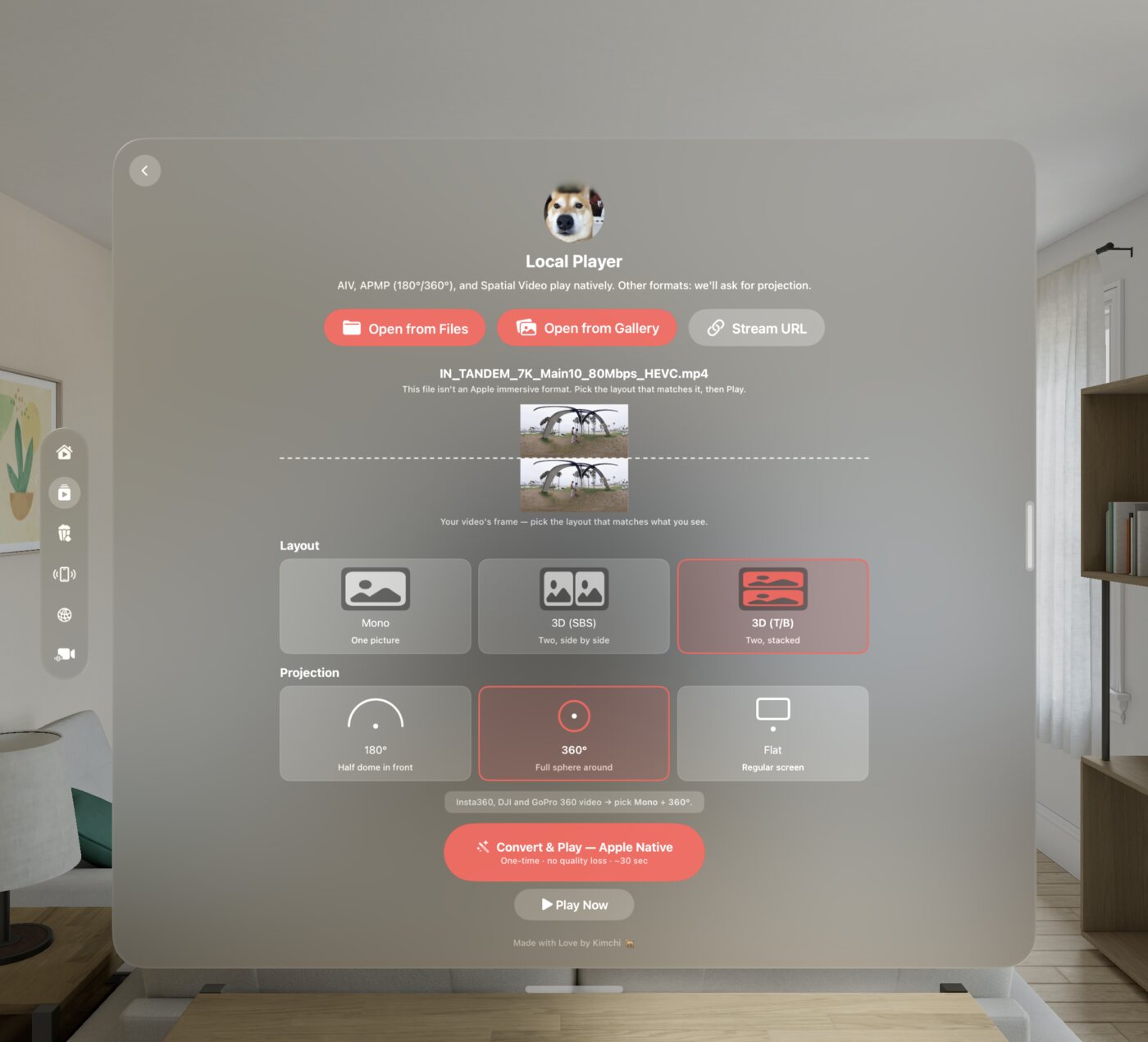
Spatial Film's Local Player on Apple Vision Pro — a floating glass pane over a living room, showing an 8K by 8K 3D 360° video's own frame above tappable layout diagrams (Mono, 3D side-by-side, 3D top-and-bottom), projection choices for 180°, 360° and flat, and a red Convert & Play — Apple Native button reading one-time, no quality loss, about 30 seconds.
The actual picker: an 8K×8K 3D 360° file shot on an Insta360 Titan. The Apple Vision Pro Files app can't convert it — Spatial Film converts and plays it right here.

This is the app's actual first question. Which layout matches the frame?

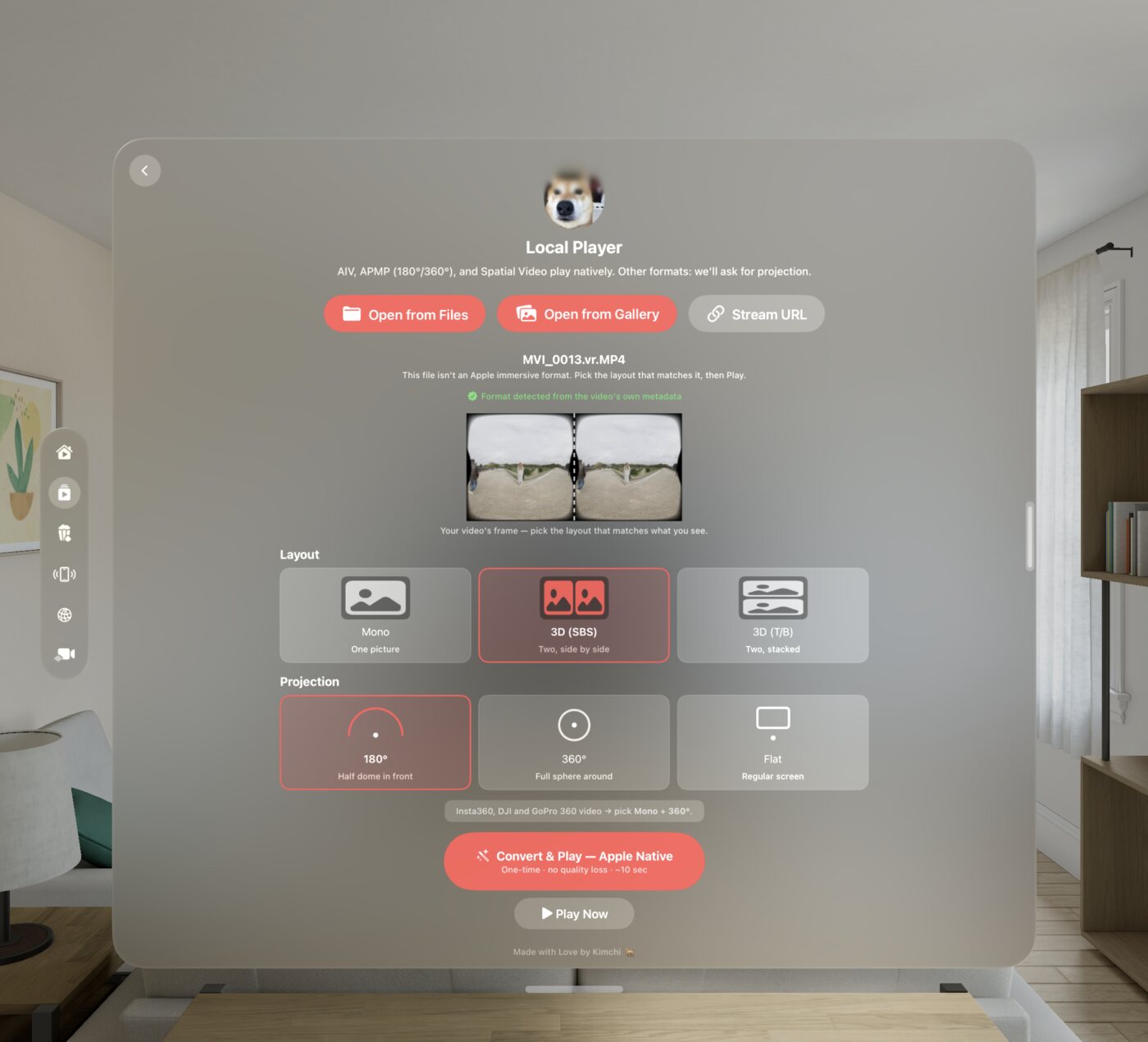
Spatial Film's Local Player on Apple Vision Pro converting a Canon VR180 dual-fisheye video — a green seal reads Format detected from the video's own metadata, with 3D side-by-side and 180° automatically selected above the Convert & Play — Apple Native button.
Converting VR180 video shot on the Canon R5C with Dual Fisheye Lens for Vision Pro — the green seal means the file's own metadata answered for you.

Why it happens

Nothing in the file says what the pixels mean.

A 3D video is two pictures squashed into one frame. A VR180 clip is a half-sphere unrolled flat. A 360° video is a whole sphere, flattened the way a world map flattens the globe. They're all ordinary video files — the arrangement is the format — and unless the file carries a label saying so, Vision Pro plays the arrangement raw: flat, doubled, or warped.

No setting fixes this. Spatial Film writes the missing label in — right on the headset, without re-encoding a single frame. And when the label is already there, like this Canon VR180 file, it's read automatically and sealed in green.

The headline act

It converts immersive videos Apple's own Files app can't.

visionOS has a built-in trick: tap a VR180 or 360° video in the Files app and it offers to convert it for Vision Pro. But it only offers when the file still carries its original VR camera metadata — and most downloaded, edited or re-exported footage lost that long ago. No metadata, no offer. Files just plays it warped and leaves you there — like the doubled panorama on the right.

Spatial Film reads that same metadata when it's there — and when it isn't, you become the metadata: tap the layout that matches, and the app writes Apple's native immersive signal into a copy of the file itself. Same class of conversion Apple's own tools perform, same untouched picture. It works on VR180, 360°, 3D 360° and flat 3D alike.

Detected from the video's own metadata

When a file does carry its metadata — footage straight off an Insta360, DJI or Canon VR camera usually does — the right layout is already selected, sealed in green, before you've touched anything.

The Files app says no.
Spatial Film says two taps.

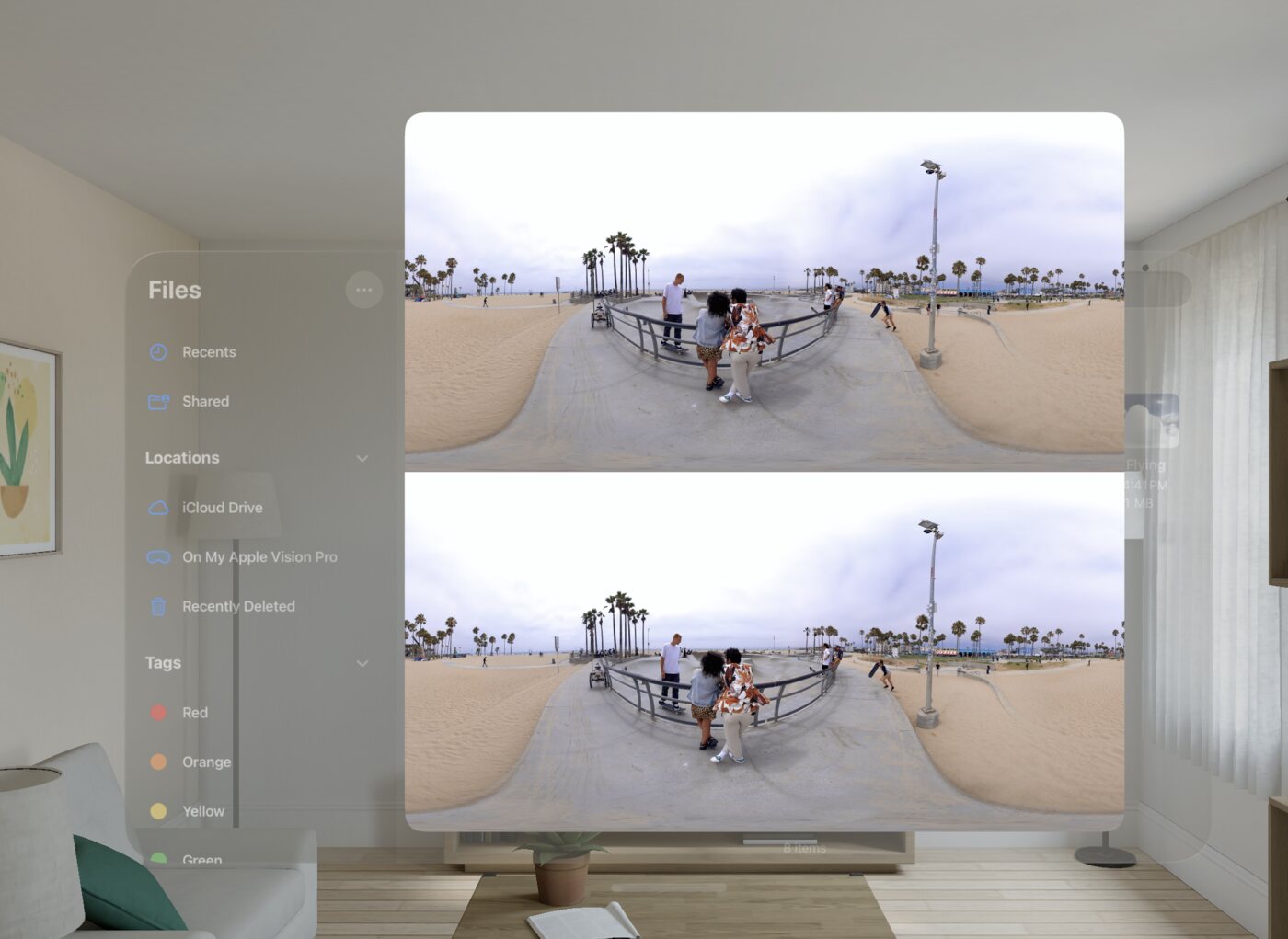
Apple Vision Pro Files app The Apple Vision Pro Files app playing a 3D 360° video raw — a flat window showing the same beach panorama twice, stacked and doubled, with no depth and no immersion.
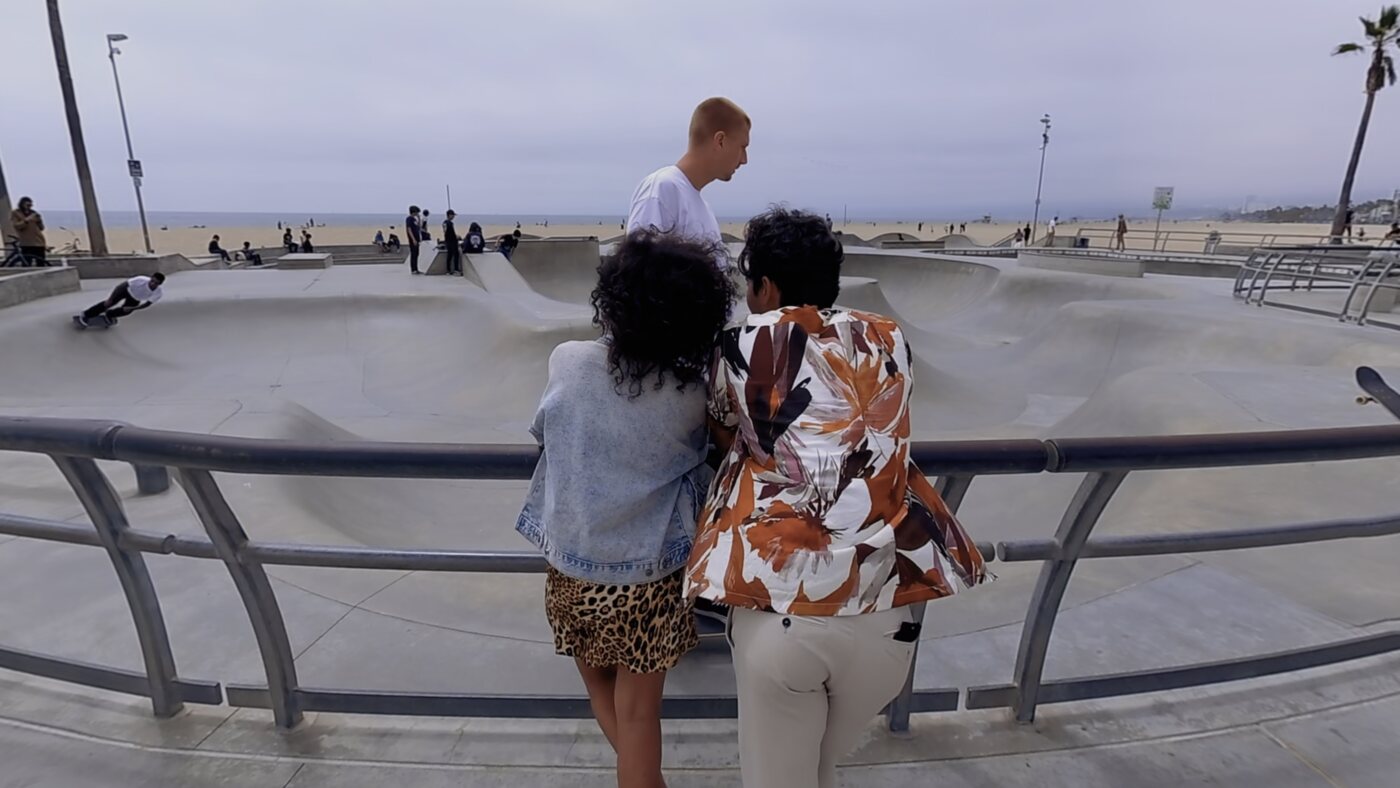
Spatial Film The same 3D 360° video after Spatial Film's Convert & Play — playing correctly on Apple Vision Pro, fully immersive: standing inside the Venice Beach skatepark scene with real depth.
The same 3D 360° file, captured on Vision Pro. Files plays it flat and doubled — Spatial Film puts you inside it.

Two taps, once per video

Five steps — and most videos only need three.

01

Open any video

Tap a video in the Files app and hand it to Spatial Film, or browse to it from the Local Player tab inside the app. Nothing to import, nothing to upload — the file stays exactly where it is.

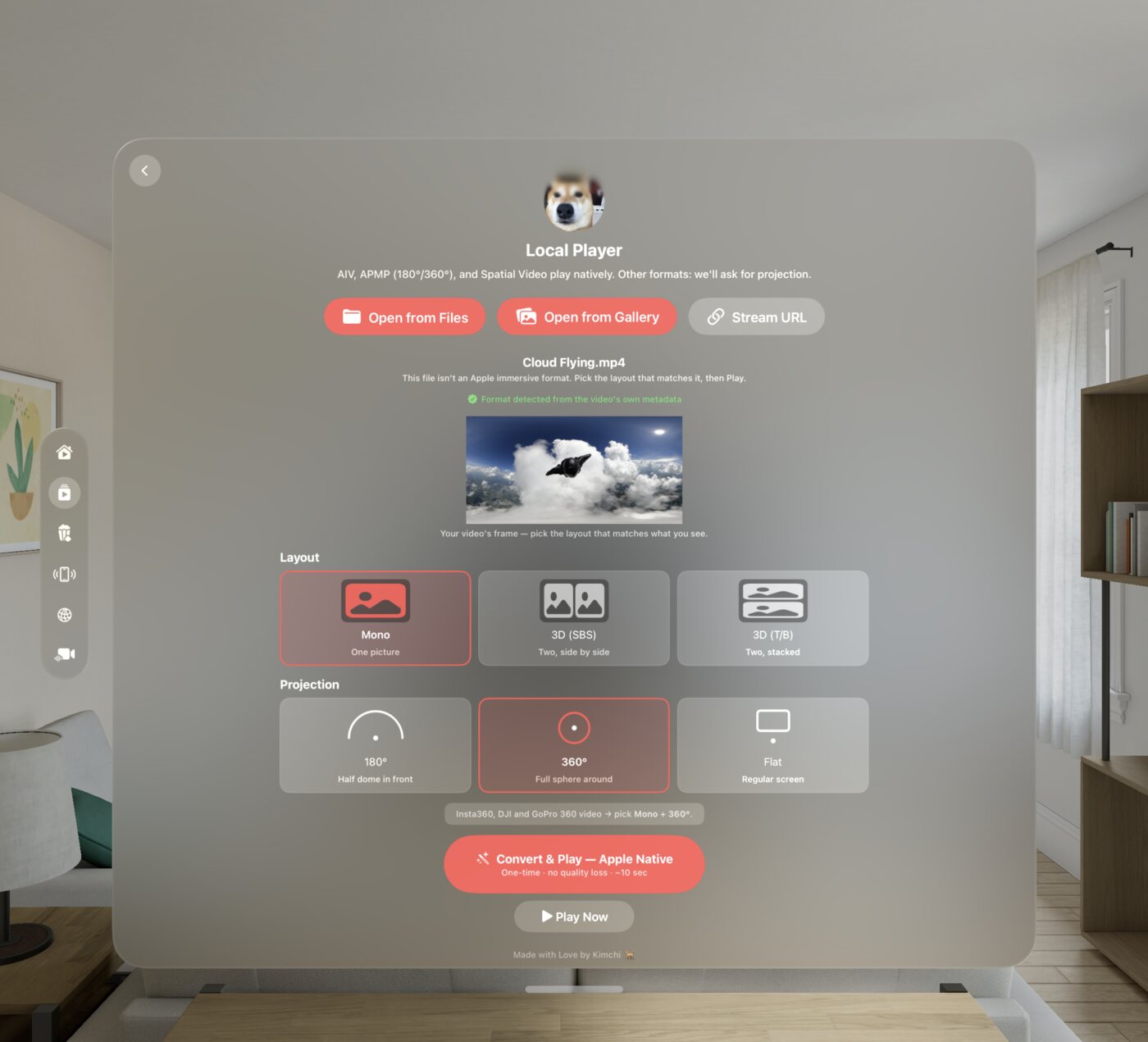
Spatial Film's Local Player on Apple Vision Pro with a 360° video shot on the Insta360 X5 just opened — its own cloud-flying frame shown above the layout diagrams, already recognized from the video's metadata with Mono and 360° selected.
A 360° video shot on the Insta360 X5, just opened — already recognized before a single tap.

Why it mattersSpatial Film is an immersive video player first, a converter second. If a file is already playable — Apple Immersive Video shot on a URSA Cine Immersive, Spatial Video, APMP — it plays immediately, honored as-is, no conversion, no questions. The picker only ever appears for a file that genuinely needs it.

02

Tell it what it's looking at — or watch it work that out itself

The app shows your video's own first frame behind a row of layout diagrams — flat, side-by-side, top-and-bottom, 180°, 360° — with split guides drawn over the picture so you can see which one matches. If the file carries VR metadata, the right layout is already selected and sealed in green. If not: one tap.

Why it mattersThe picker is quietly an immersive-format education tool. We've taught 600,000 creators how to make immersive video right over the past decade on our YouTube channel — and this is that same teaching, built into the app. No settings page, no format glossary to study: the frame and the diagrams answer each other.

03
The one that matters

Convert & Play — Apple Native

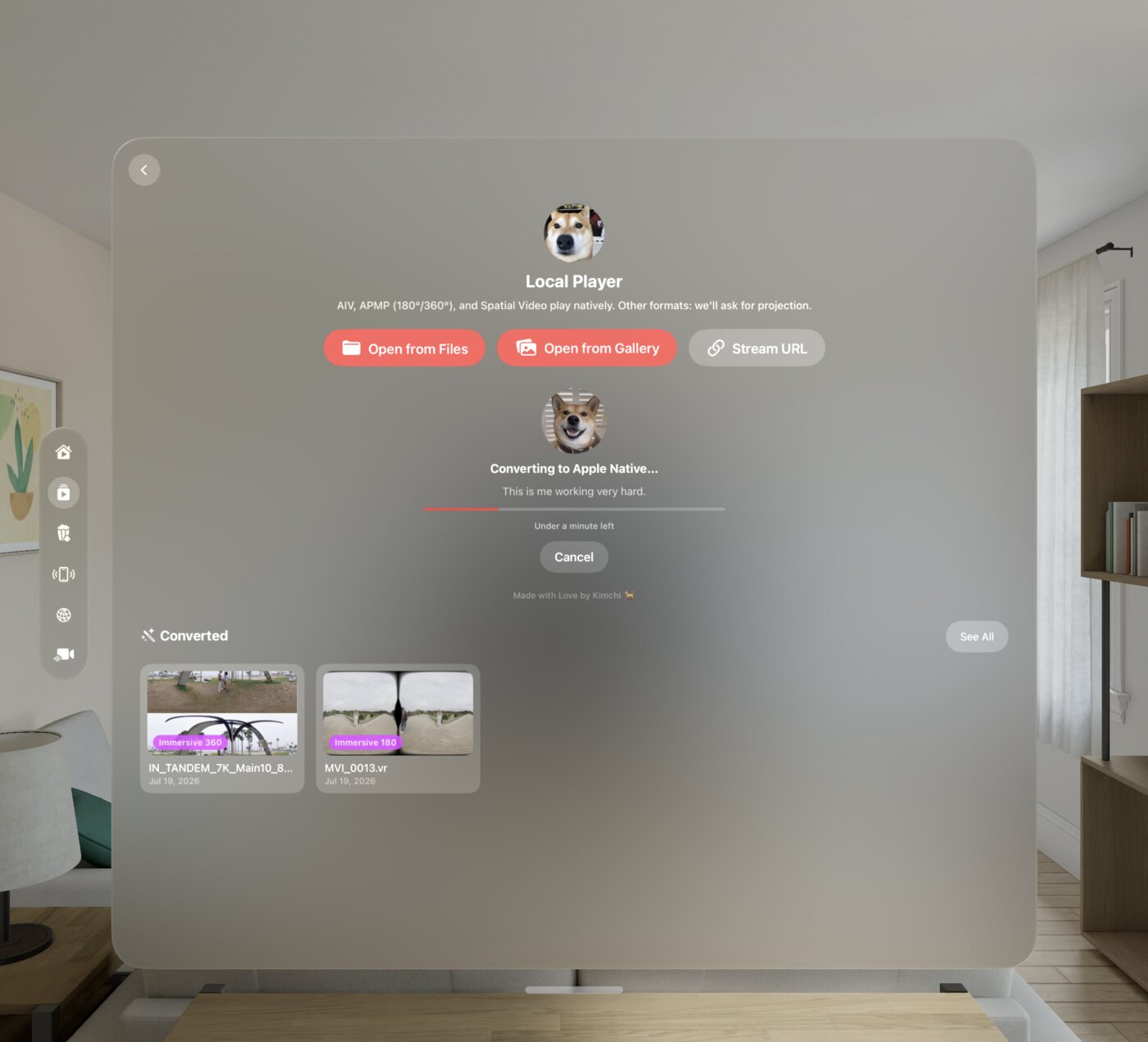
One tap writes Apple's own immersive signal into a copy of your file. No re-encoding — the video is carried across untouched, so it finishes in minutes at disk speed, with a live time estimate and a Cancel button the whole way. In a hurry? Play Now watches it immediately, no conversion at all.

Spatial Film converting a video to Apple Native on Apple Vision Pro — Kimchi the Shiba Inu presiding over a live progress bar reading under a minute left, with a Cancel button, above a Converted shelf showing finished Immersive 360 and Immersive 180 videos.
Under the hood it's just Kimchi running on a tiny spinning wheel, powering your conversion one paw at a time. Your finished videos land on the Converted shelf below.

Why it's fast, and why it costs you nothingConfession: the wheel does nothing. Kimchi has been asleep this whole time — it's fast because there's nothing to re-encode. It's the same video, repackaged: not one frame recompressed, the converted copy pixel-identical, your original never touched. You're not trading quality for immersion. You're just telling Vision Pro what it's looking at — and that takes seconds, not a render farm. Or a dog.

04

Watch it the way Apple plays film

Converted video plays in Apple's native player — the same controls, the same gaze-and-pinch polish as everything else on the headset. Flat and 3D videos dock into a 360° cinema environment, a private theater wrapped around your film. VR180 and 360° footage goes further and simply surrounds you, hardware-decoded through the same pipeline as Apple Immersive Video.

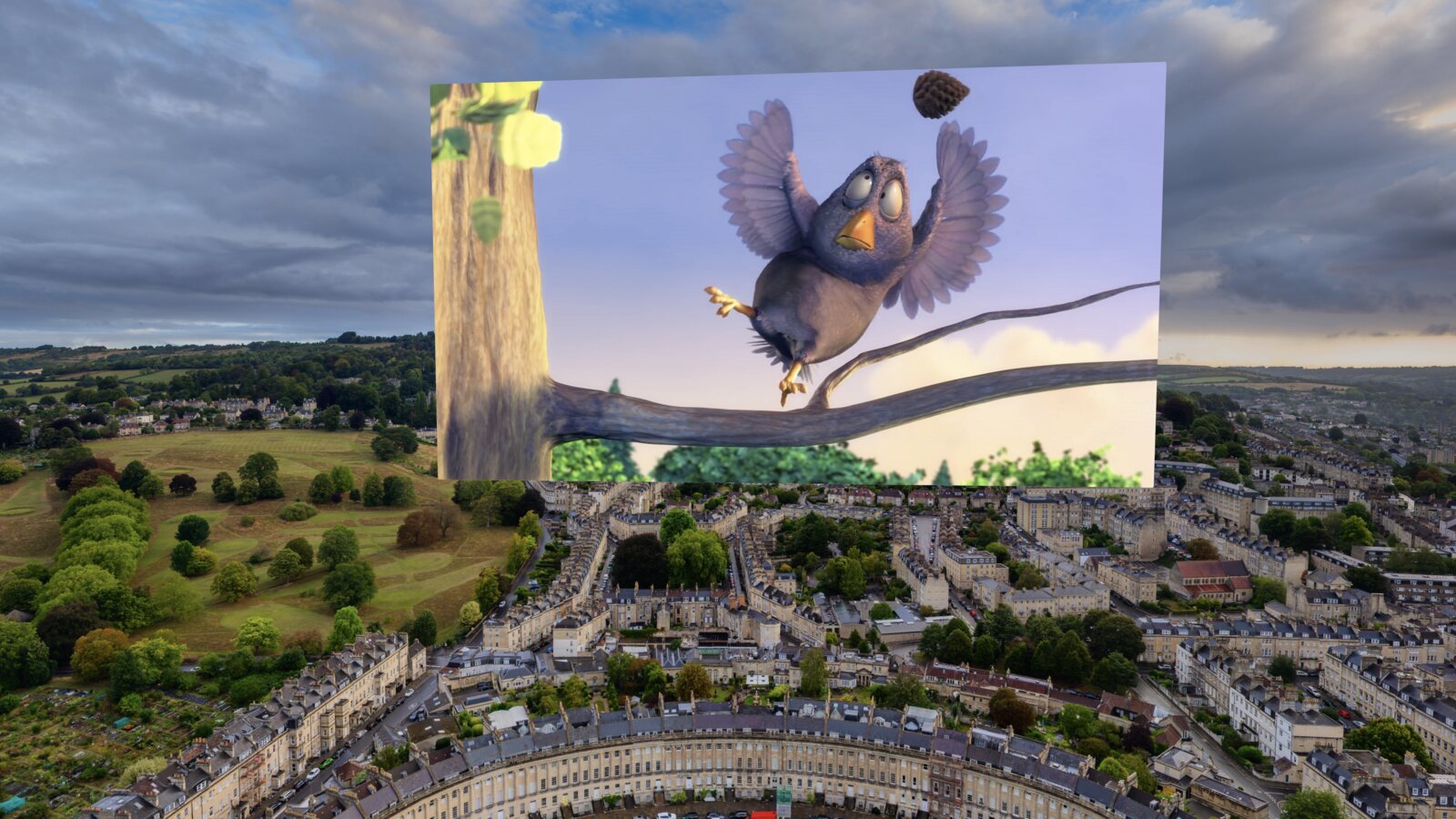
A side-by-side 3D film converted by Spatial Film, docked into an Apple Immersive Environment on Apple Vision Pro — the movie floating in real depth above a sweeping aerial view of the Royal Crescent in Bath.
An SBS 3D film, docked in one of our Apple Immersive Environments — included free with the app.

Why it mattersSome "premium" players — ports from other headsets — paint your flat movie onto a sphere in their own renderer. That resampling softens the picture, and no amount of "AI enhancement" can put back pixels the projection smeared away. Apple's native player docks your film as a true flat screen, pixel for pixel — with the environments, the docking, and the system polish that only exist on Apple's own pipeline. That's exactly where your files just landed.

05

Find everything in My Files

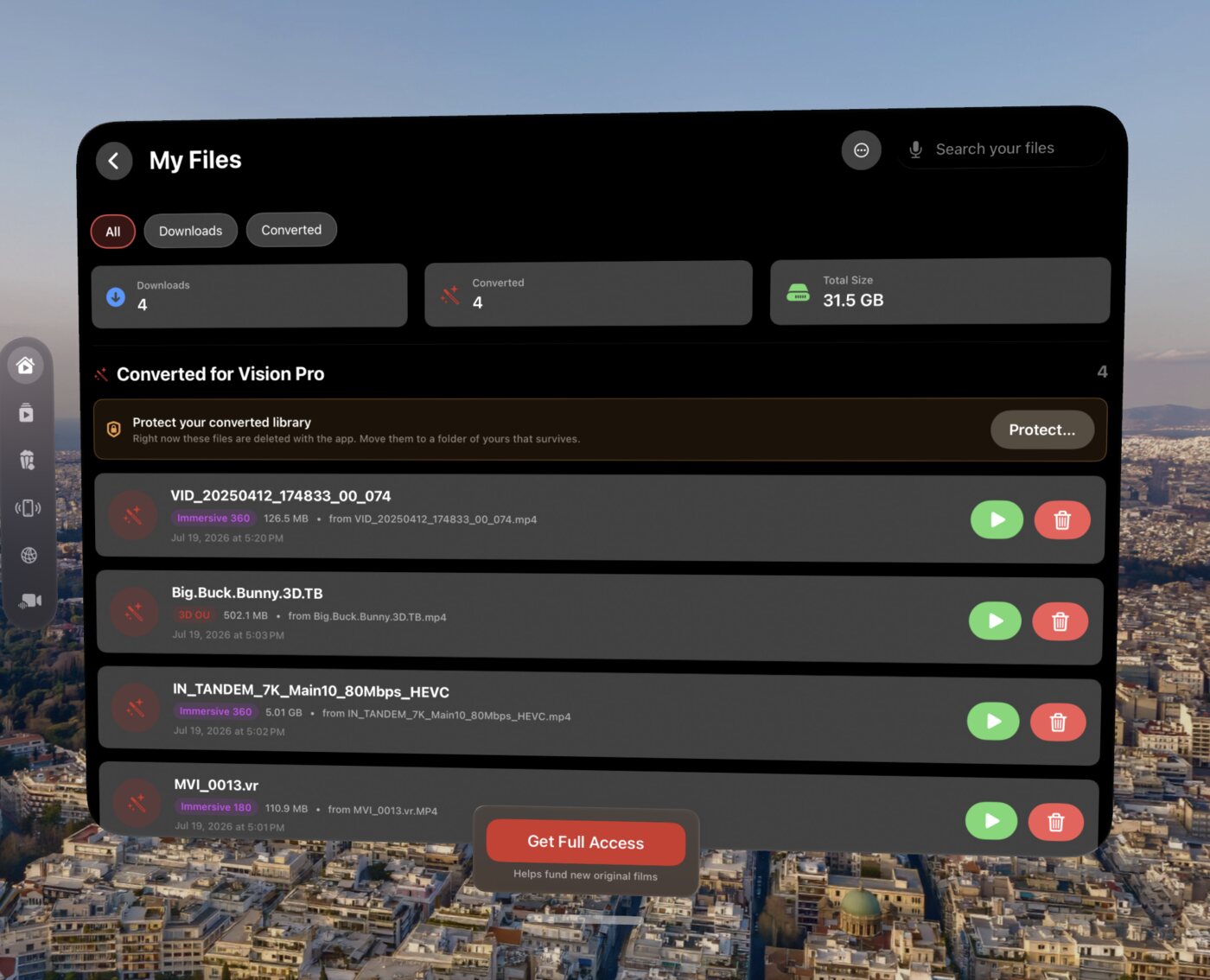
Every converted video lands in My Files with its poster, a plain-language badge — 3D Side by Side, Immersive 180 — plus search and sorting across everything you've converted or downloaded. Replays start instantly, and the app remembers every answer you've given it: it never asks about the same video twice.

Spatial Film's My Files library on Apple Vision Pro, floating over a 360° aerial environment of Athens — All, Downloads and Converted filter chips, a Converted for Vision Pro list with Immersive 360, Immersive 180 and 3D OU badges, per-file sizes, search, and a Protect your converted library banner.
My Files, floating over one of the app's 360° environments — every conversion badged and searchable, one tap from playing again.

Why it mattersA converter without a library turns into a folder of mystery files within a week. This one keeps the posters, the formats and the search — so the video you fixed last month is one tap tonight.

The format cheat sheet

What plays, and how.

Plays immediately

Already Apple-native

  • Apple Spatial Video (MV-HEVC)
  • Apple Immersive Video (AIVU)
  • APMP 180° and 360°
  • Regular flat video — MP4, MOV

No conversion, no questions. Open it, it plays.

Two taps, on the headset

Converted right here — free

  • 3D videos — side-by-side and top-and-bottom, full or half
  • VR180 — 2D and 3D
  • 360° — 2D and 3D
  • Anything the Files app refuses to convert

One-time, minutes, zero re-encoding. This page's whole story.

On your Mac — also free

The heavy lifting

  • MKV — Vision Pro can't open the container at all; AirStream repackages it losslessly
  • Flat 2D → 3D — an experimental on-device AI adds real depth
  • Whole-library streaming — your Mac or NAS collection, on the headset

That's Spatial Film AirStream, our free Mac app. We'd rather hand you the right tool than pretend the headset does everything.

The way we built it

Everything plays in Apple's own player. That was the whole idea.

There are two ways to build a video app for Vision Pro. Bundle your own playback engine — it can swallow more formats, but everything plays inside a private renderer, cut off from the system. Or build on Apple's native pipeline, where video docks into environments, the system player does the talking, and files outlive the app. We chose Apple's pipeline, all the way down.

The system player, everywhere

Every video — converted or native — plays through Apple's own player. Same controls, same gaze polish, same environments and docking as the headset's own cinema — and flat video stays a true flat screen at full sharpness, never resampled onto someone's sphere. Nothing on this page plays in an imitation of visionOS.

Convert once, Apple forever

A converted video is a standard Apple file, not an entry in our database. It opens in Files and QuickLook, plays in any Apple-native app, and AirDrops to a friend's Vision Pro — where it plays with no app installed at all.

Zero re-encoding, ever

Our conversions rewrite the label, never the picture. The same video, repackaged — minutes at disk speed, pixel-identical, original untouched. If a job would need re-encoding, we say so and point you at the right tool instead.

The honest trade

Native means rip containers like MKV and ISO stay off the headset — Apple's player can't open them, and we won't bolt on a private engine to fake it. Our free Mac app converts them losslessly instead. That's the trade, in the open.

Convert once, and it isn't locked to our app.
It's an Apple-standard file — and it's yours.

The honest version

What you need — and what it costs you.

Headset
Apple Vision ProvisionOS 26 or later.
Mac needed?
NoEverything on this page happens on the headset. The Mac app exists for MKV and whole-library streaming — and it's free too.
Disk space
The converted copyA conversion writes a new file alongside your original — same size, since nothing is recompressed. Delete either one whenever you like.
Price
FreeThe player, the picker, the converter, the library — all of it. No trial, no watermark, no unlock.

Get Spatial Film

Everything on this page is free — because making your own videos work on your own Vision Pro should simply be free.

Download Free — App Store

Apple Vision Pro · visionOS 26 or later · Free download on the App Store

The one paid thing, in plain sight: Spatial Film also carries a catalog of immersive films — Apple Immersive Video from the filmmaker who built this app, and others. That catalog is a subscription. It is optional, it is clearly marked, and nothing on this page needs it. Your files, your player, your converter: free, with nothing behind them.

Have a Mac too?

AirStream finishes the job.

Our free Mac app opens the MKVs the headset can't, converts flat 2D to 3D with on-device AI, and streams your whole collection — Mac, Plex, Jellyfin or NAS — to your Vision Pro over Wi-Fi.

See AirStream — Free for Mac

And there's a whole cinema waiting: the Spatial Film catalog →

Questions

The things people ask.

How do I play VR180 videos on Apple Vision Pro?

Open the video in Spatial Film — free on the App Store. If the file carries VR camera metadata the app recognises it automatically; if not, you tap the VR180 diagram. One conversion later — minutes, with no re-encoding — it plays through Apple's own immersive pipeline, in 3D if the footage is 3D. For a lot of people this is the whole reason the app exists.

Why does my 3D video look flat and doubled on Vision Pro?

A 3D video stores two pictures squashed into one frame — side by side, or top and bottom. Nothing in the file tells Vision Pro that, so it plays the frame exactly as it finds it. Spatial Film writes the missing 3D signal into a copy of the file, without re-encoding, and the same video plays with real depth.

Can Apple Vision Pro play side-by-side or top-and-bottom 3D videos?

Yes — with Spatial Film. Pick the matching layout diagram, let it convert once, and the video plays in real 3D in Apple's native player — docked into a 360° cinema environment if you like. Side-by-side, half side-by-side, top-and-bottom and full top-and-bottom all work.

How do I watch 360° videos on Apple Vision Pro?

Open the video in Spatial Film and choose 360° — or let the app read the file's own metadata and choose for you. After a one-time conversion with no re-encoding, the footage fully surrounds you through Apple's native immersive pipeline. 2D and 3D 360° both work. Try it with footage from your Insta360 X5, GoPro Max 2 or DJI Osmo 360 — even the new 360 drones like the Antigravity A1 and DJI Avata 360.

Why won't the Files app convert my VR180 or 360 video?

The Files app on visionOS can only convert a video that still carries its original VR camera metadata. Most downloaded or edited footage has lost it, so Files never even offers. Spatial Film converts those files anyway: you tell it the format with two taps, and it writes Apple's native immersive signal itself.

Does converting lose quality?

No. Spatial Film never re-encodes your video — it writes Apple's format signal into a copy and carries every frame across untouched. It's the same video, repackaged, which is also why a conversion takes minutes instead of hours. Your original file is never modified.

Where do converted videos go?

Into a Converted for Vision Pro folder you can see in the Files app — they're your files, in the open. You can also choose your own folder with Protect My Library, and the library even survives deleting the app: reinstall, point Spatial Film at the folder, and everything comes back.

Does Spatial Film play MKV files on Vision Pro?

No — Apple Vision Pro cannot open MKV containers, and we won't pretend otherwise. Spatial Film AirStream, our free Mac app, repackages an MKV losslessly into a file the headset plays natively — and it can stream your whole library to the headset too.

Is Spatial Film really free?

Every feature on this page is free: the player, the format picker, the on-headset converter, the My Files library — everything that makes Apple Vision Pro movie watching work with your own files. No trial, no watermark, no unlock. The app also carries an optional catalog of immersive films; that part is paid, it's clearly separate, and you don't need it for anything here.

Does it work with footage from Insta360, DJI or Canon cameras?

Yes. Footage straight off an Insta360, DJI or Canon VR camera usually still carries its VR metadata, so Spatial Film recognises the format automatically and marks it with a green verified seal. Exports and downloads that lost the metadata take two taps instead.

Do converted videos work outside Spatial Film?

Yes. A converted video is a standard Apple file — the same kind Apple's own tools produce. It opens in the Files app and QuickLook, plays in any Apple-native video app, and AirDrops to a friend's Vision Pro, where it plays with no app required.

What plays on Vision Pro without any conversion?

Apple Spatial Video (MV-HEVC), Apple Immersive Video (AIVU), Apple Projected Media Profile (APMP) in 180° and 360°, and regular flat video. Open them and they play — the picker only appears when a file actually needs it.